
Fushati Canteen
A new experience for school cafeterias — Fushati (فسحتي) is a comprehensive canteen management solution empowering parents to monitor children’s daily expenses, set spending limits, and top up digital student cards. Features NFC card scanning, face recognition, Apple Pay integration, and full Arabic RTL support.
Key Highlights
Enhanced parental control: monitor children’s daily expenses and set personalized spending limits
Digital student card system with unique card number, balance tracking, and transaction history
NFC card scanning for easy payment card registration at the canteen
Google ML Kit face recognition for secure student authentication
Top-up via Apple Pay, Visa, Mastercard, and mada payment gateways
Card verification modal showing student name, phone, and card details before confirmation
Full Arabic RTL support for bilingual (Arabic/English) user experience
Multi-app ecosystem: parent app, canteen manager app, and admin dashboard
Transaction history with credited/debited entries and timestamps
Card management: add new cards, top up balance, delete cards
App Walkthrough — 18 Screens
Splash & Onboarding
The app opens with the Fushati (فسحتي) bilingual logo on a soft mint gradient. The tagline “A new experience for school cafeterias” introduces the service. An onboarding slide highlights “Enhanced Parental Control” — empowering parents to monitor their children’s daily expenses and set personalized spending limits.

Splash — Tagline

Onboarding — Parental Control

Home — Empty State
| # | Screen |
|---|---|
| 1 | Splash — Tagline |
| 2 | Onboarding — Parental Control |
| 3 | Home — Empty State |
Authentication
Parents log in with their Saudi phone number (+966). A 5-digit activation code is sent via SMS for verification. The code entry screen shows a countdown timer for resend. On success, a green “All set!” screen with an animated OK hand confirms verification and redirects to the home page.
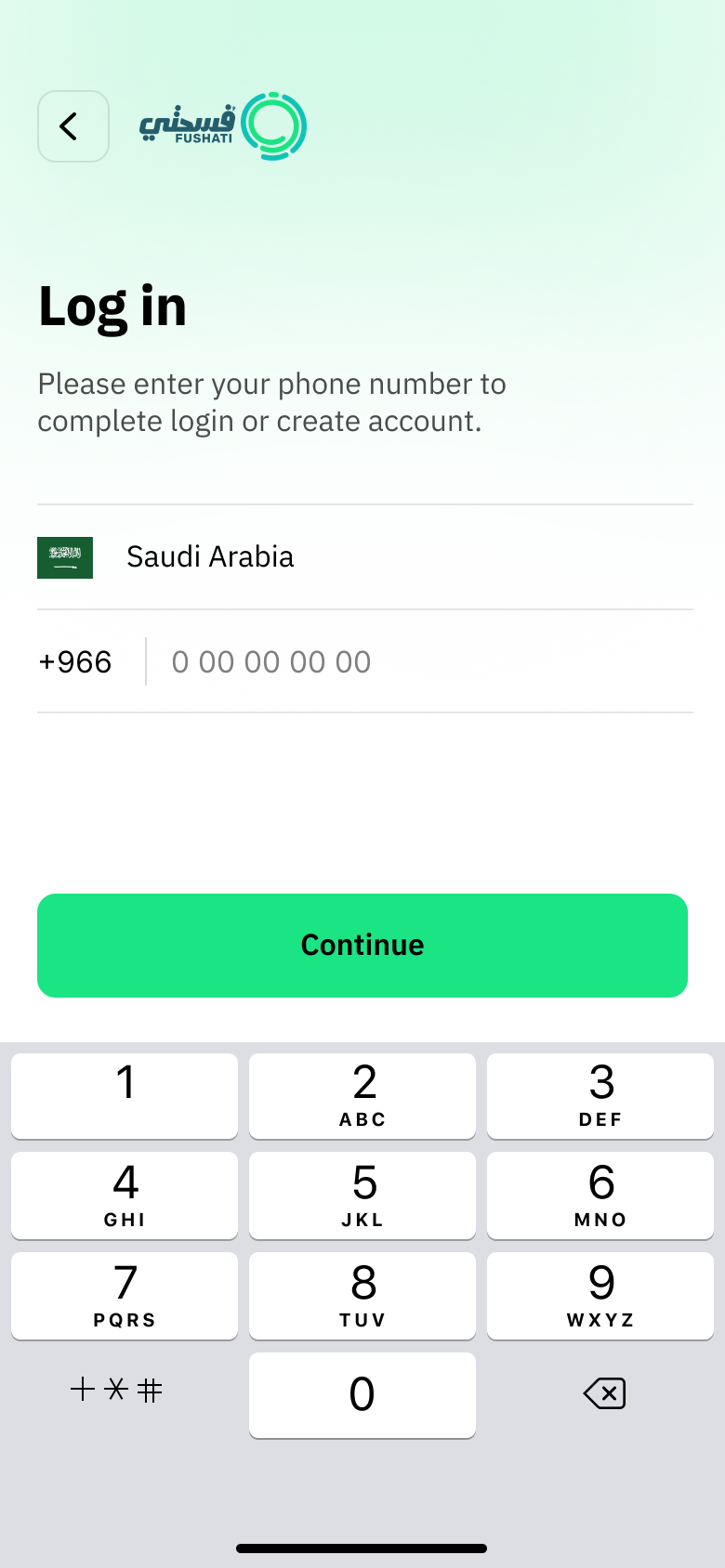
Phone Login
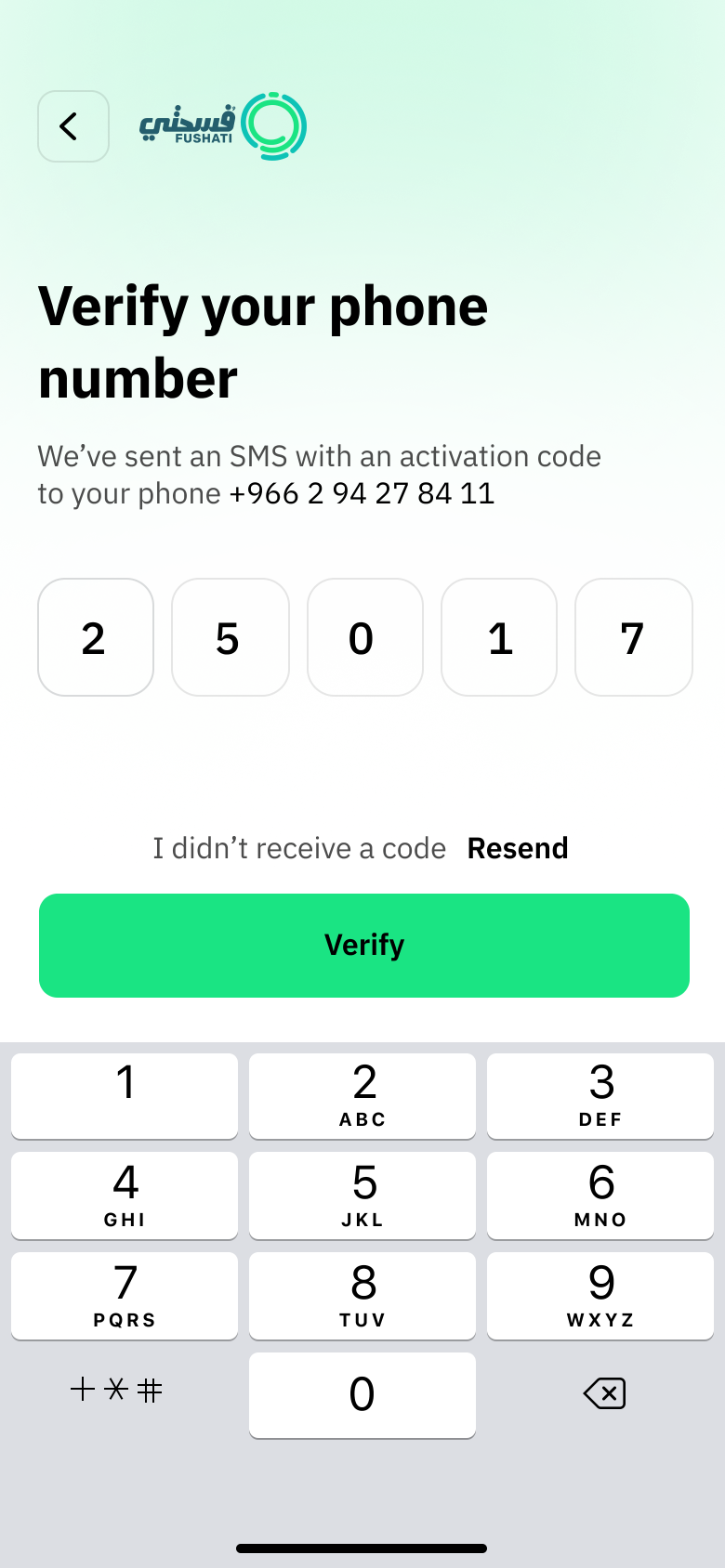
OTP Verification

Verification Success
| # | Screen |
|---|---|
| 1 | Phone Login |
| 2 | OTP Verification |
| 3 | Verification Success |
Student Card Setup
Parents add their child’s student card by entering the card number. A verification modal displays the student’s full details — name, phone number, creation date, and card number — for confirmation before linking. On success, the card appears on the home screen showing the balance in Saudi Riyals with a “Manage” button.
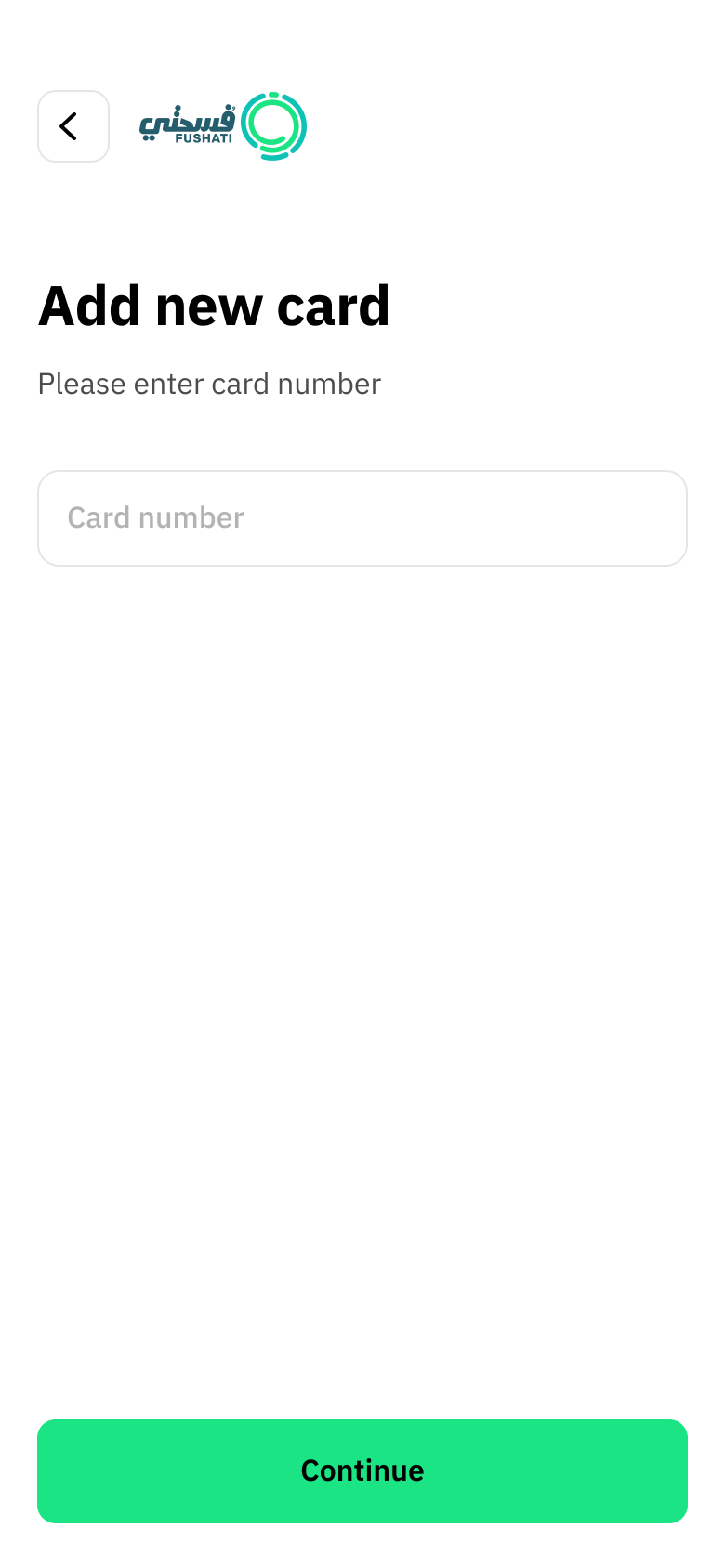
Add New Card
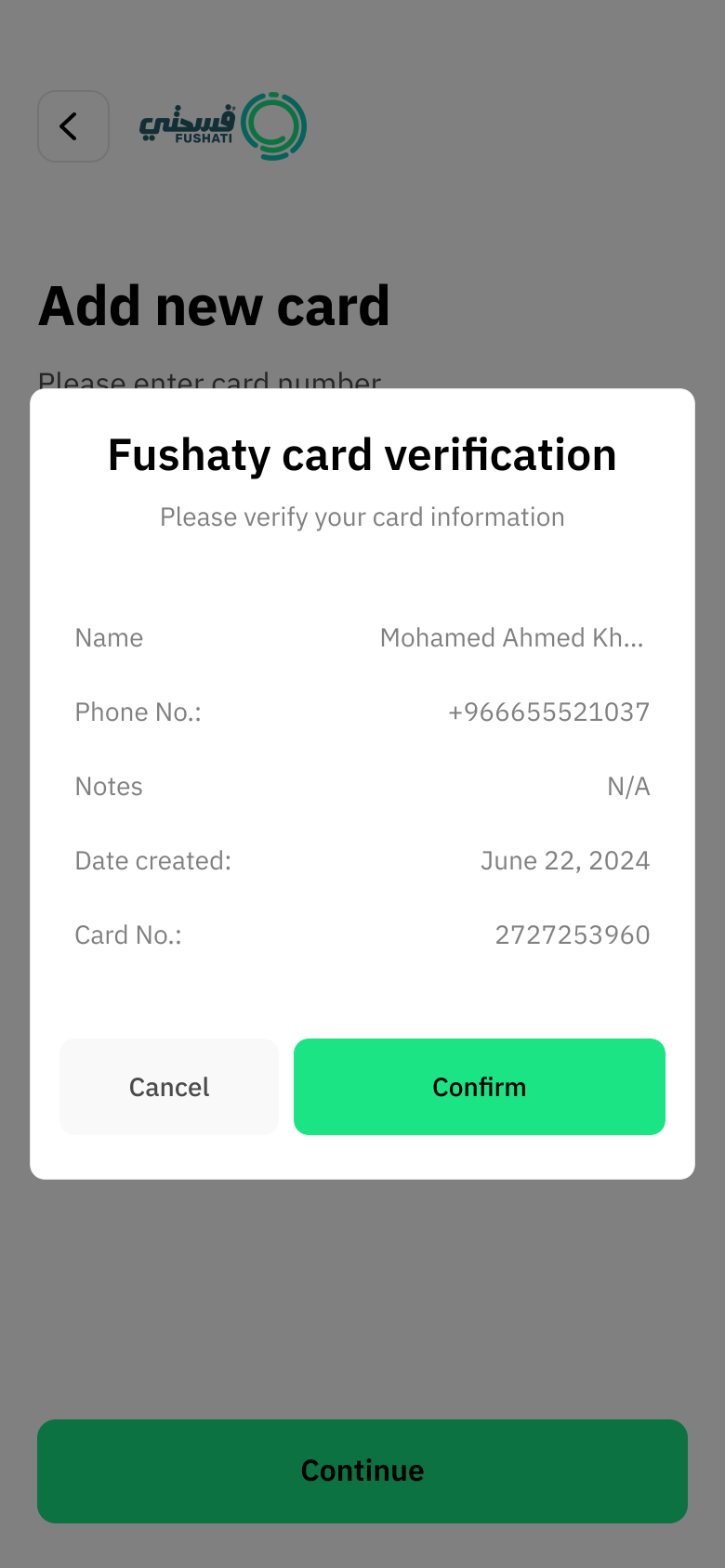
Card Verification
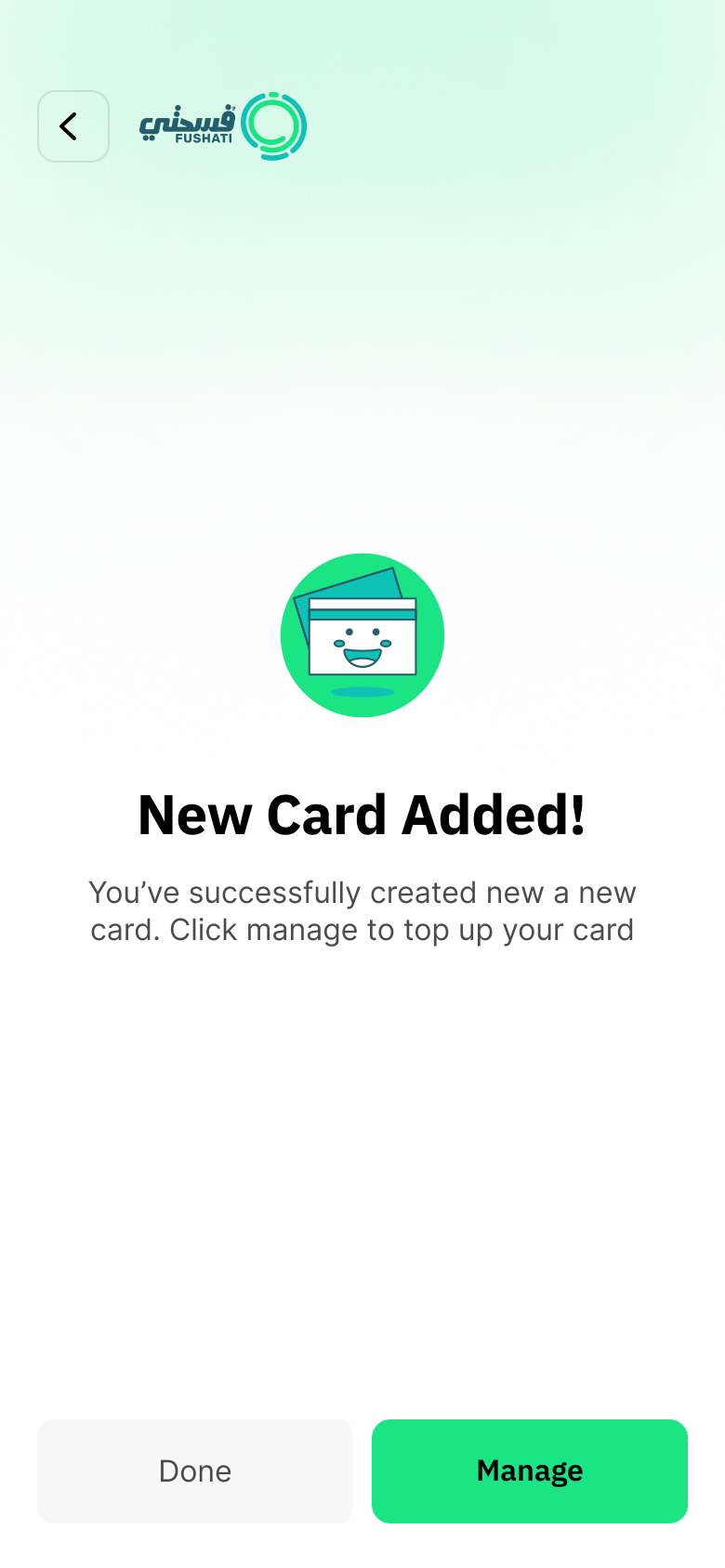
Card Added Success
| # | Screen |
|---|---|
| 1 | Add New Card |
| 2 | Card Verification |
| 3 | Card Added Success |
Home & Card Management
The home dashboard displays the student’s digital card with card number, student name, phone, and current balance in R.S (Saudi Riyals). Parents can add multiple cards for different children. The Manage Card screen shows top-up and delete options alongside a full transaction history with credited/debited entries, amounts, transaction IDs, and timestamps.
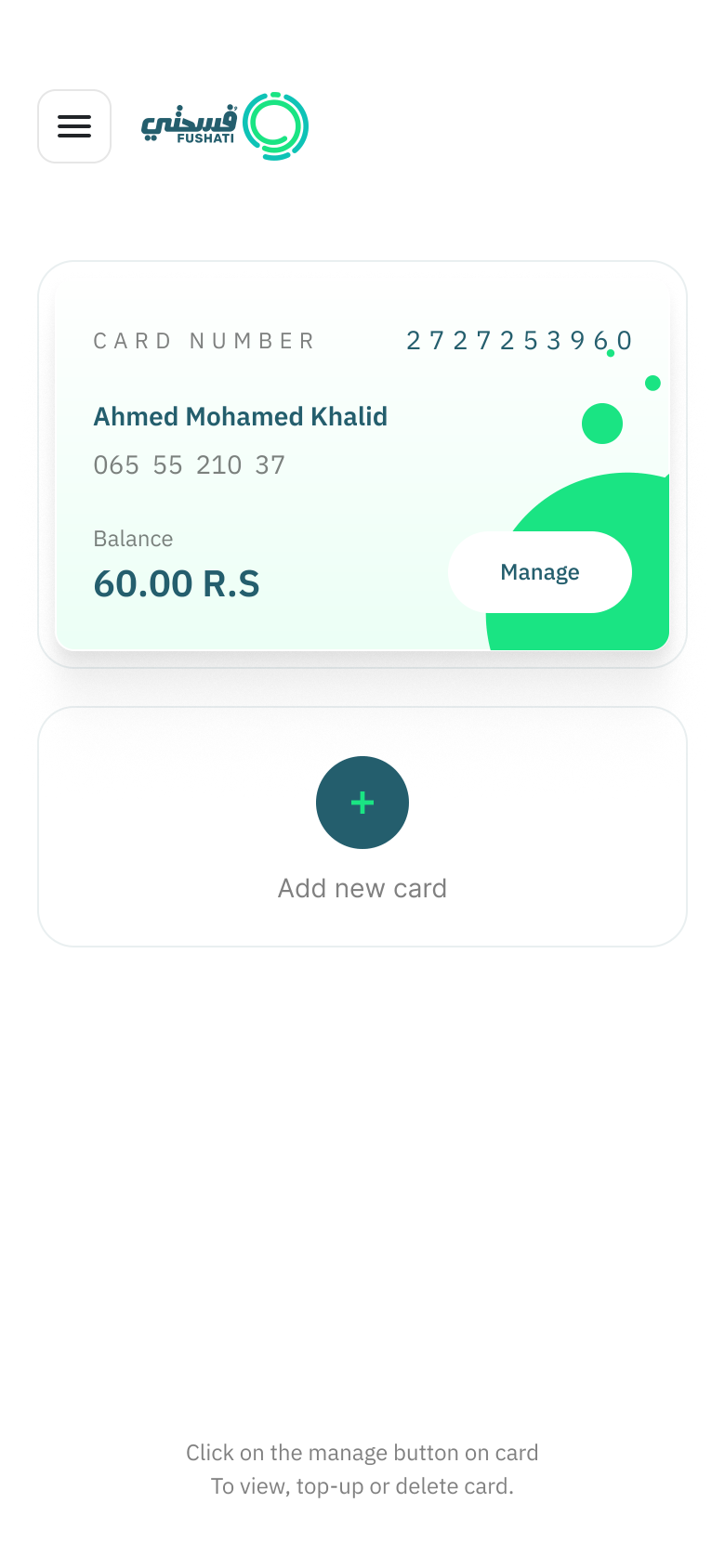
Home — Student Card
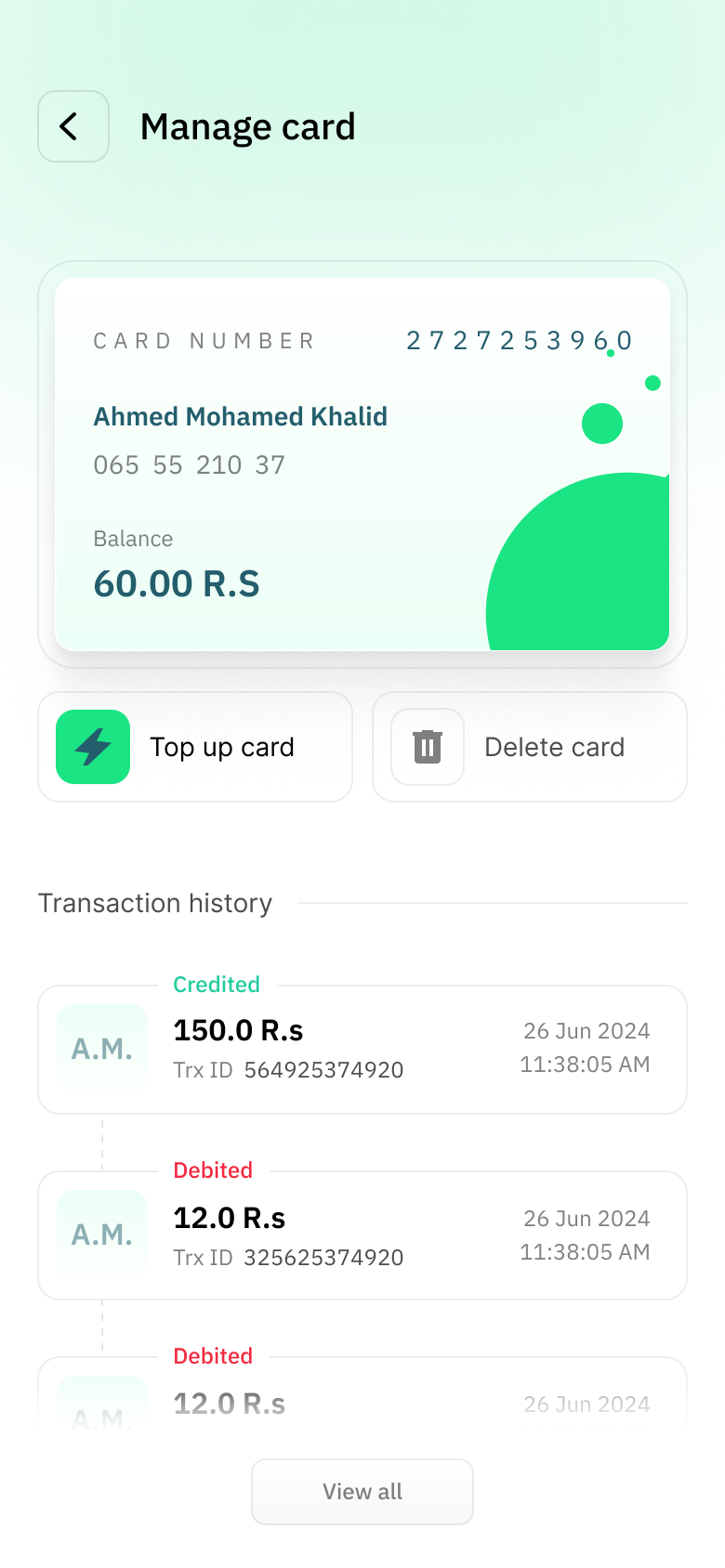
Manage Card & History
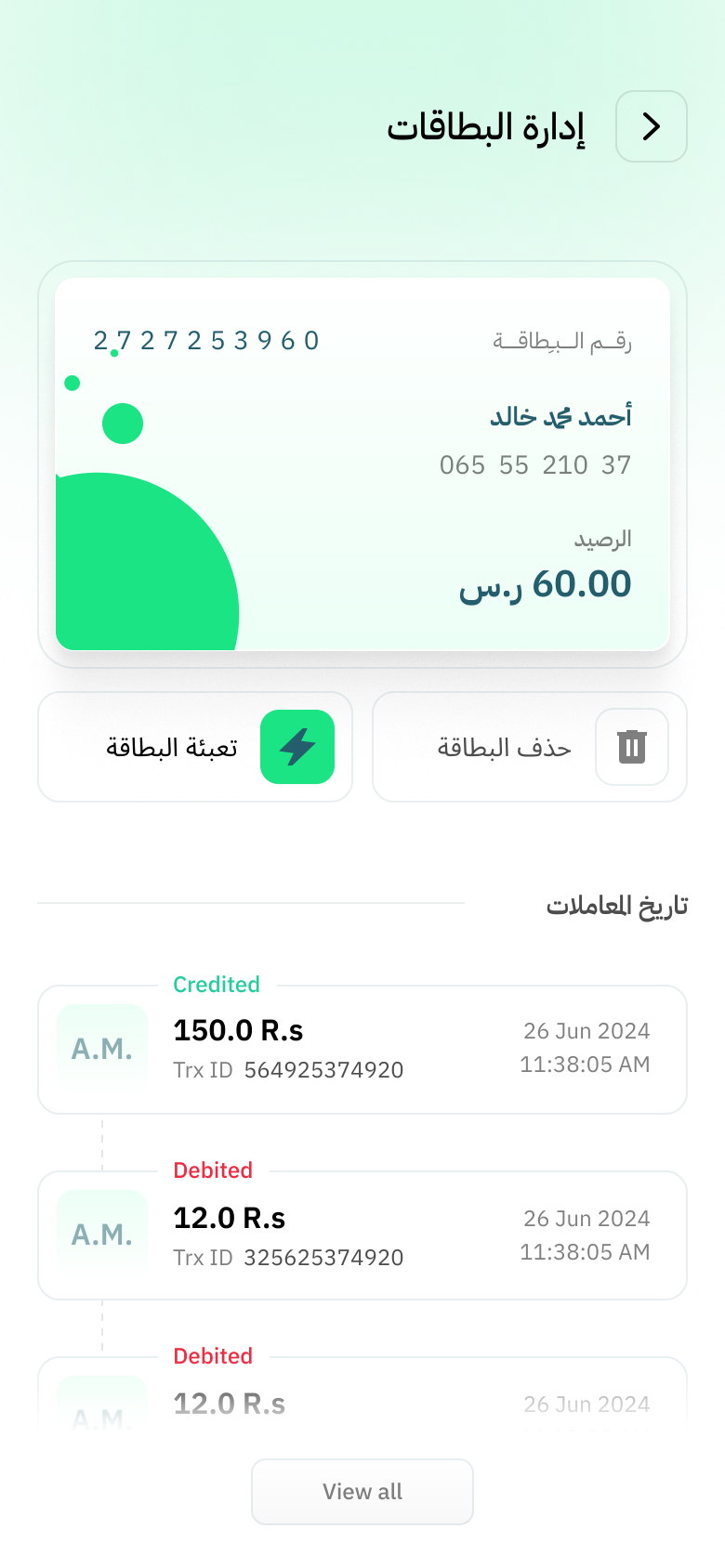
Arabic RTL — إدارة البطاقات
| # | Screen |
|---|---|
| 1 | Home — Student Card |
| 2 | Manage Card & History |
| 3 | Arabic RTL — إدارة البطاقات |
Top Up & Payments
Parents top up their child’s card with preset amounts (100–1000 SAR) via a bottom sheet. Payment supports Apple Pay and manual card entry (Visa, Mastercard, mada). The payment gateway shows merchant details, card holder info, and amount. A processing spinner appears during the transaction, followed by a success or failure dialog.
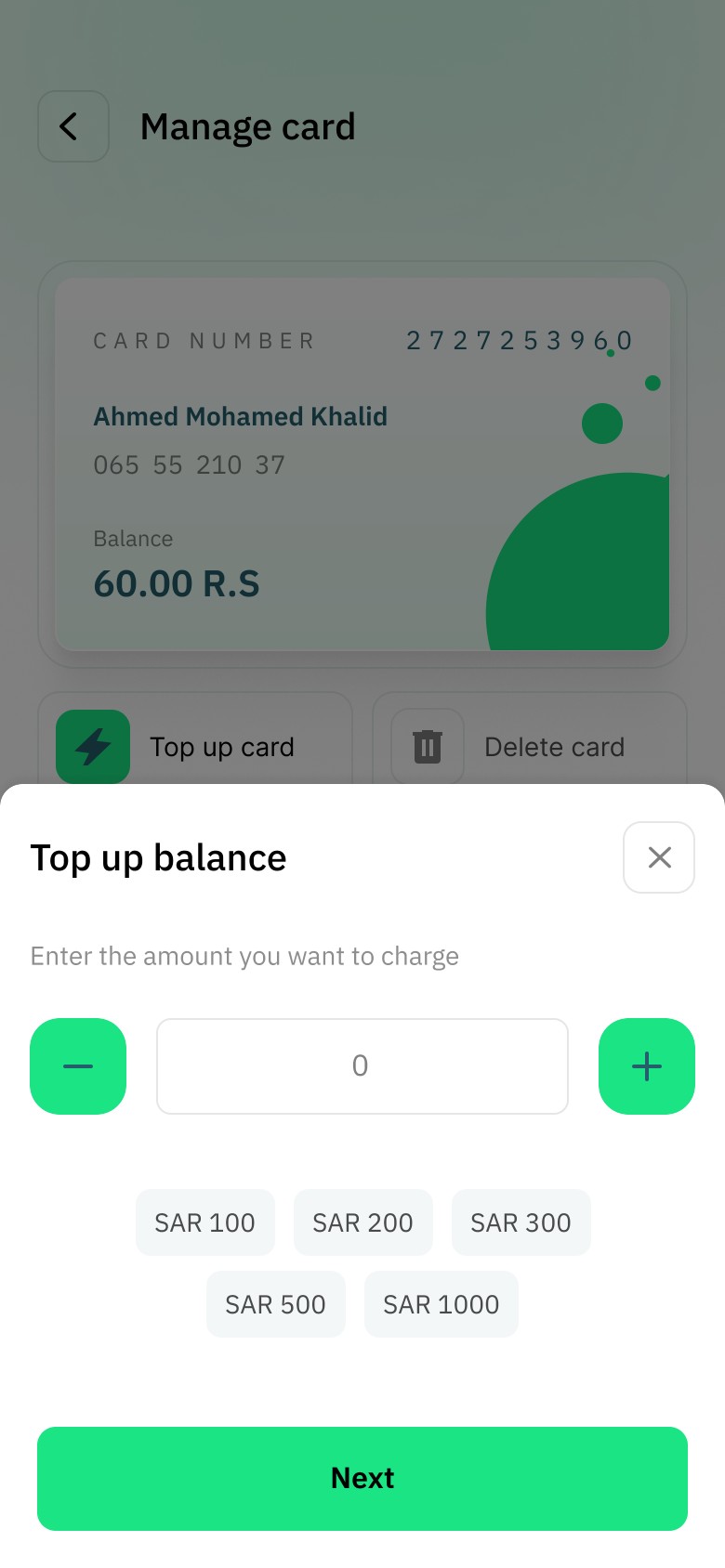
Top Up Amount
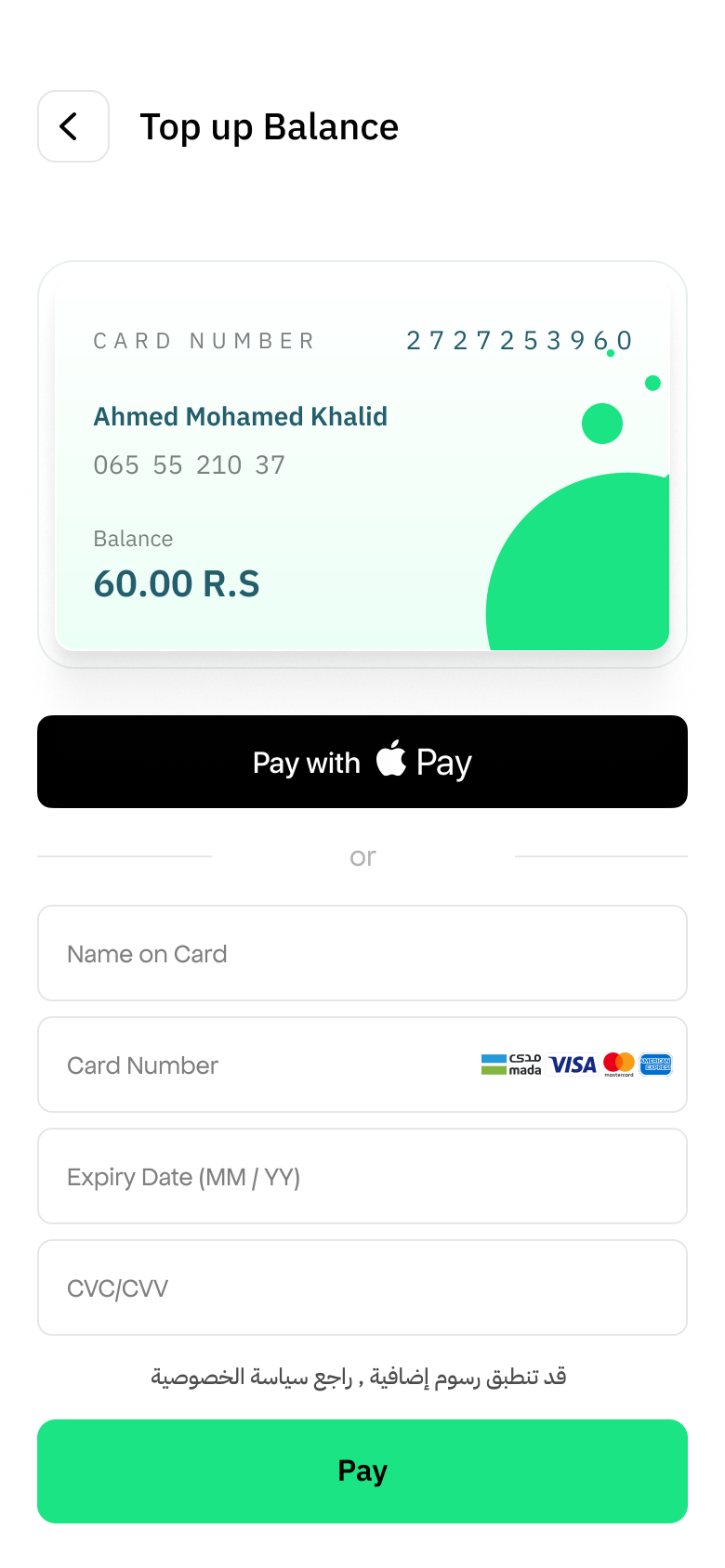
Apple Pay & Card Payment
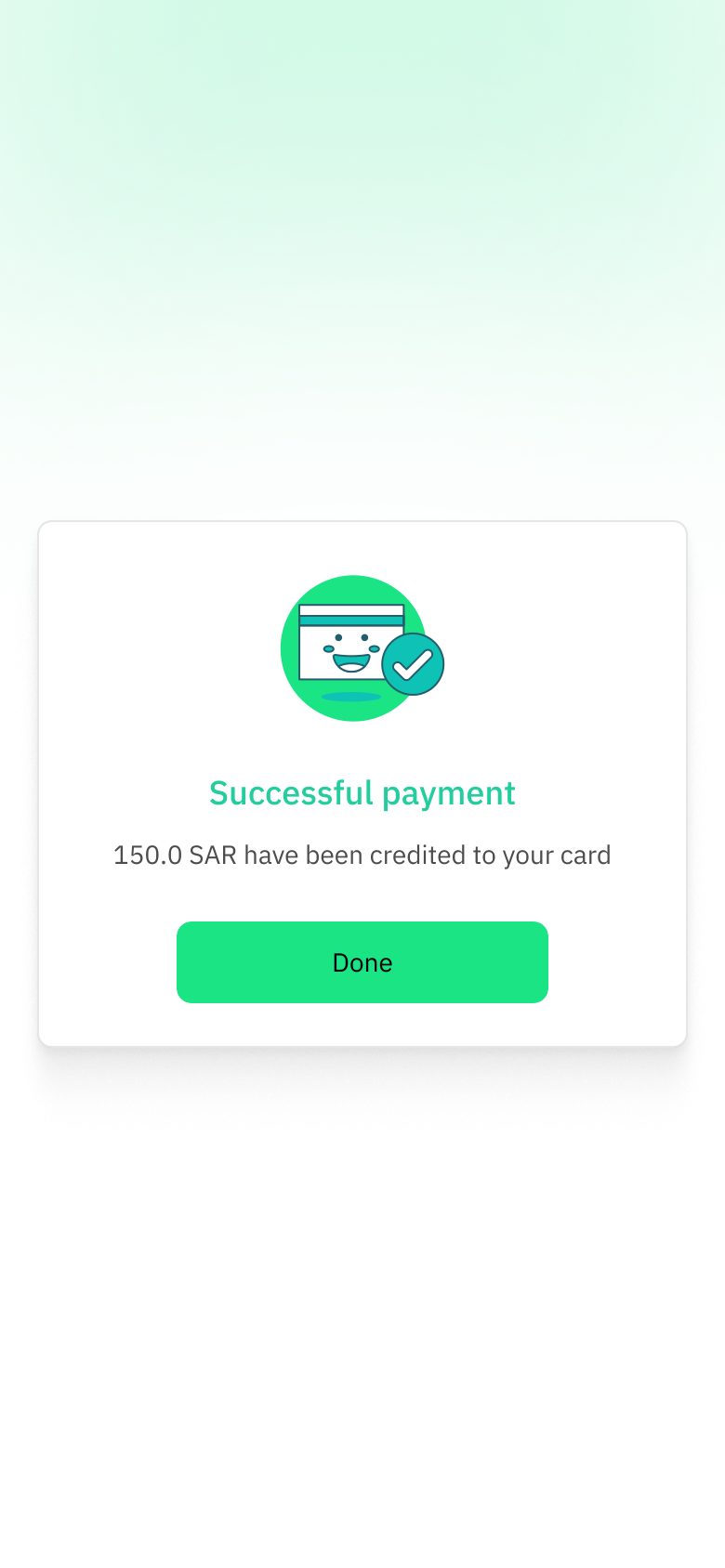
Payment Success
| # | Screen |
|---|---|
| 1 | Top Up Amount |
| 2 | Apple Pay & Card Payment |
| 3 | Payment Success |
Profile & Settings
The side drawer menu provides access to Profile, Contact Us, App Language, and Log Out. The profile setup collects name, email, and gender. Profile completion is prompted via a green badge in the menu. The app supports full Arabic RTL layout switching for a bilingual experience.
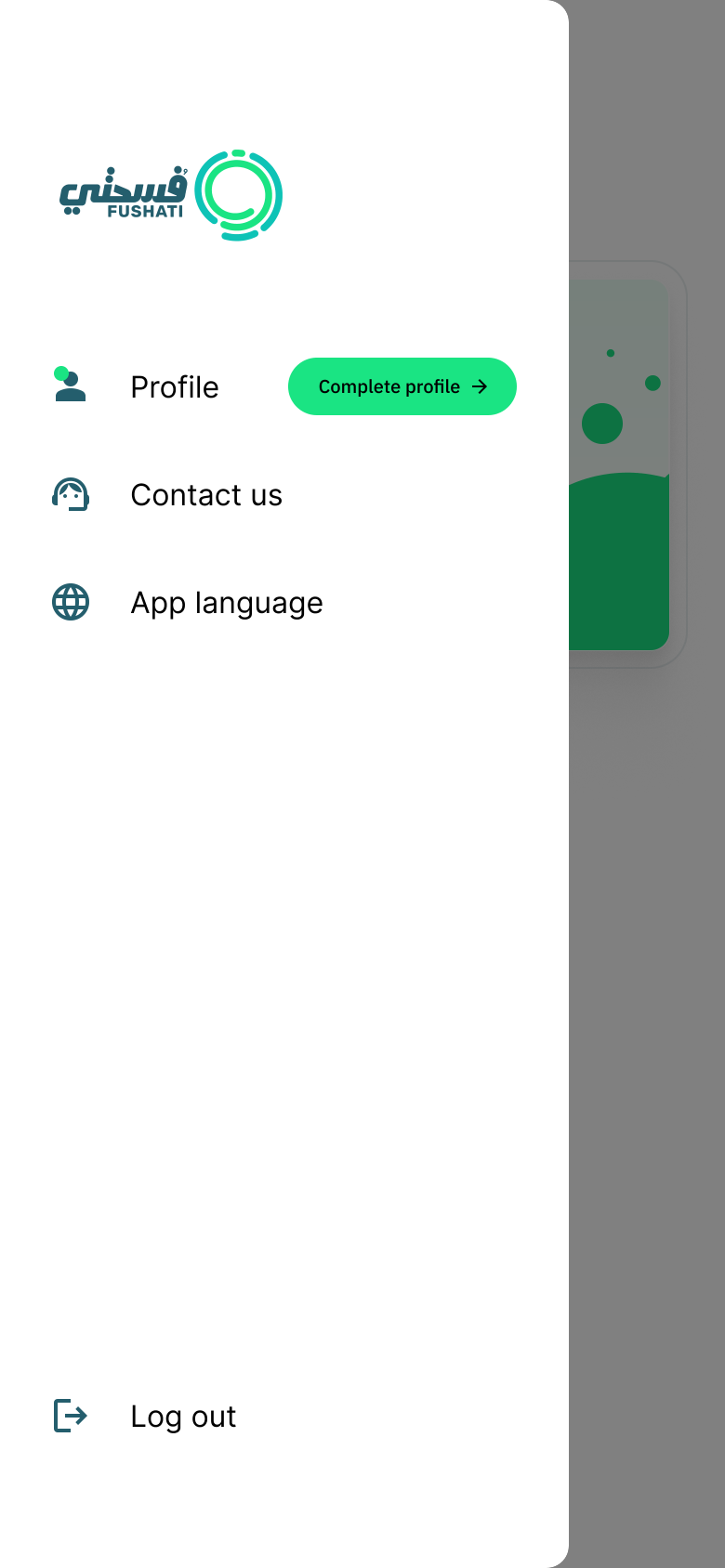
Side Menu
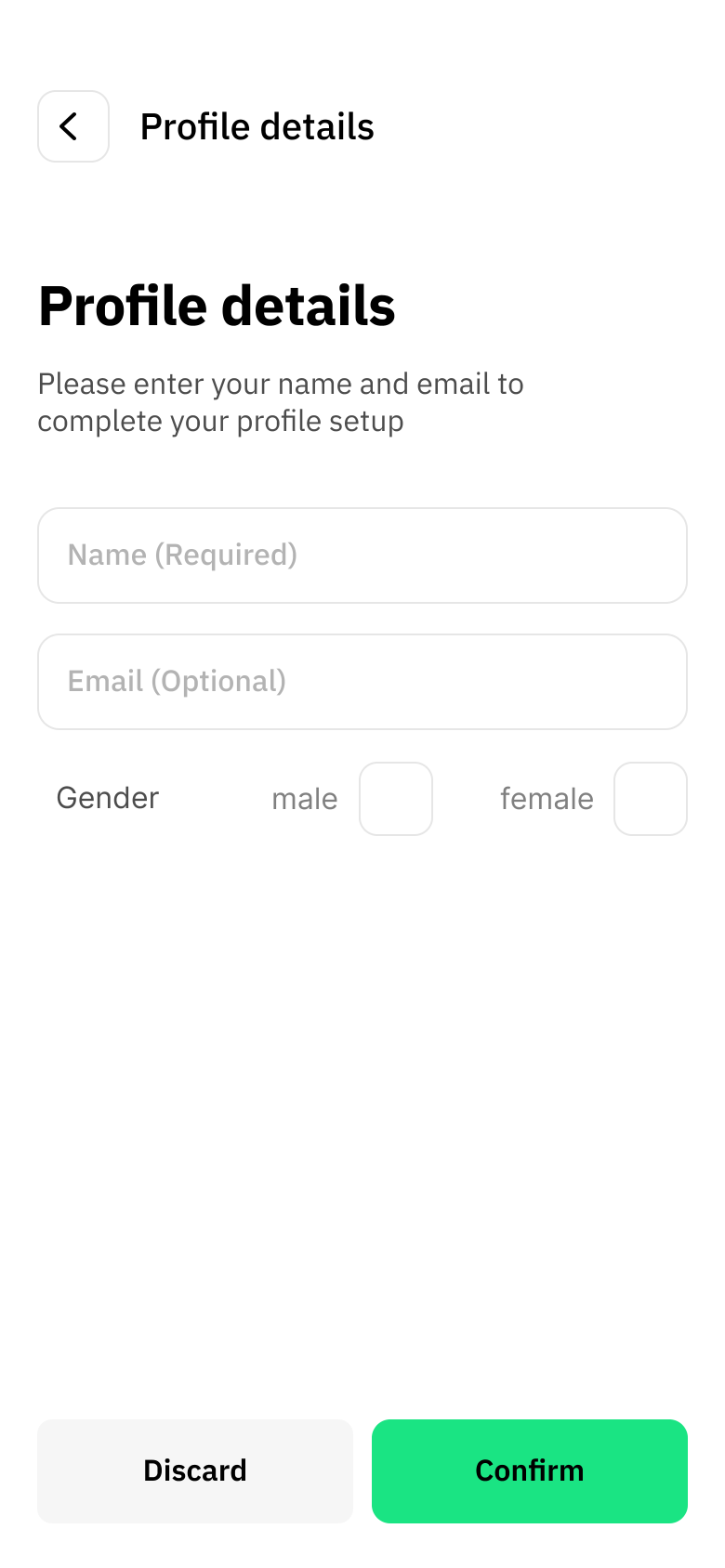
Profile Details
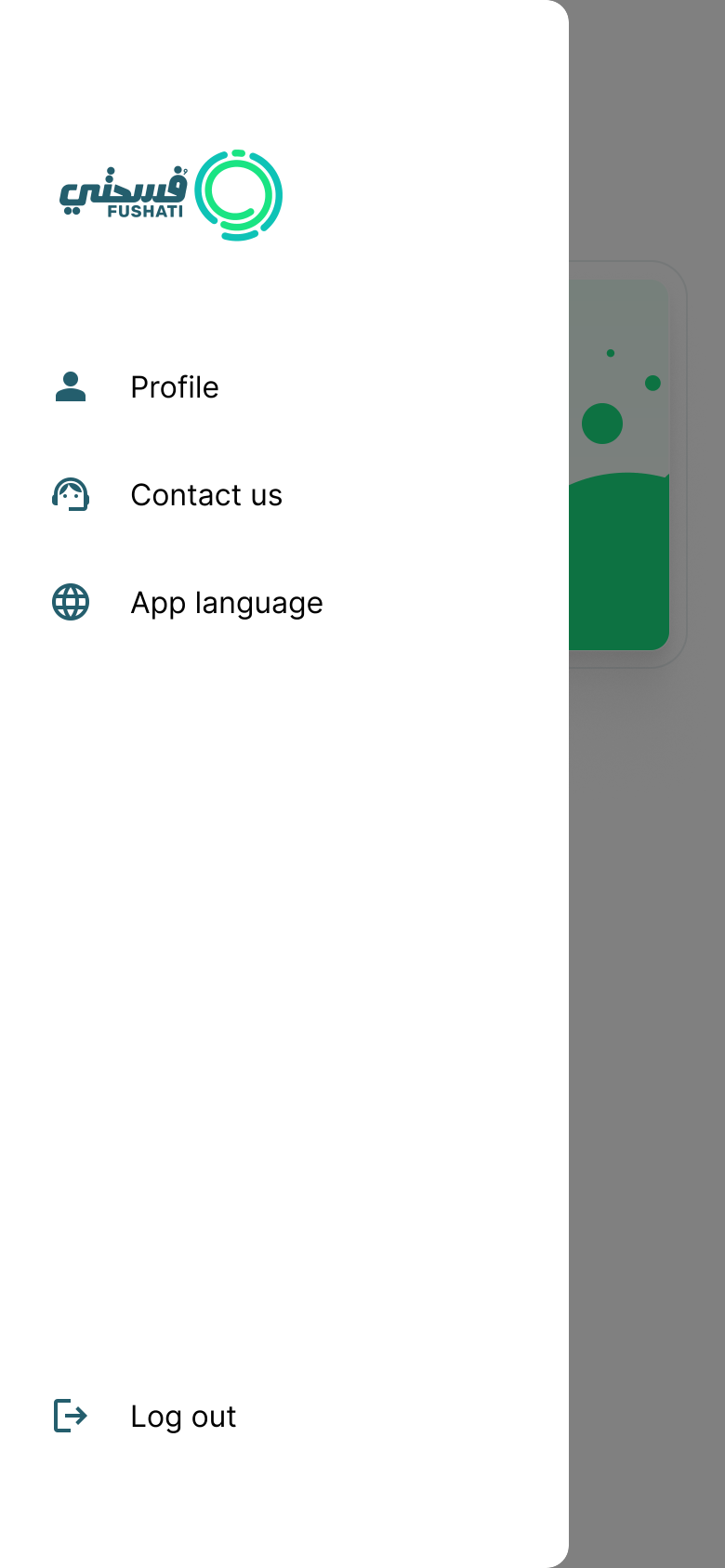
Menu — Completed Profile
| # | Screen |
|---|---|
| 1 | Side Menu |
| 2 | Profile Details |
| 3 | Menu — Completed Profile |