Smart Vending
Mobile Companion App for SaladBar Vending Machines
A mobile app that turns any SaladBar vending machine into a smart self-service kiosk. Users scan the machine's QR code, browse available products, select items, and pay directly from their phone — the machine dispenses automatically after payment.
scan(machine_qr)
  └─ fetch(products)
     └─ select → pay → dispense
How It Works
4-step flow from phone to product
Scan QR Code
Point your phone camera at the QR code on the vending machine to connect.
Browse Products
View the machine's live inventory — filter by category, see prices in SAR.
Pay from Phone
Add to cart, apply promo code, pay via Credit Card, Apple Pay, or PayPal.
Collect Product
Payment confirmed — the machine dispenses your product automatically.
Splash & Onboarding
SaladBar brand identity with bilingual Arabic/English support
The app opens with the SaladBar (سالادبار) bilingual logo on a fresh green gradient. A 2-step onboarding introduces the service: "Welcome to SaladBar — the largest self-service vending chain for fresh salads and snacks" followed by QR code scanning instructions.

Splash Screen
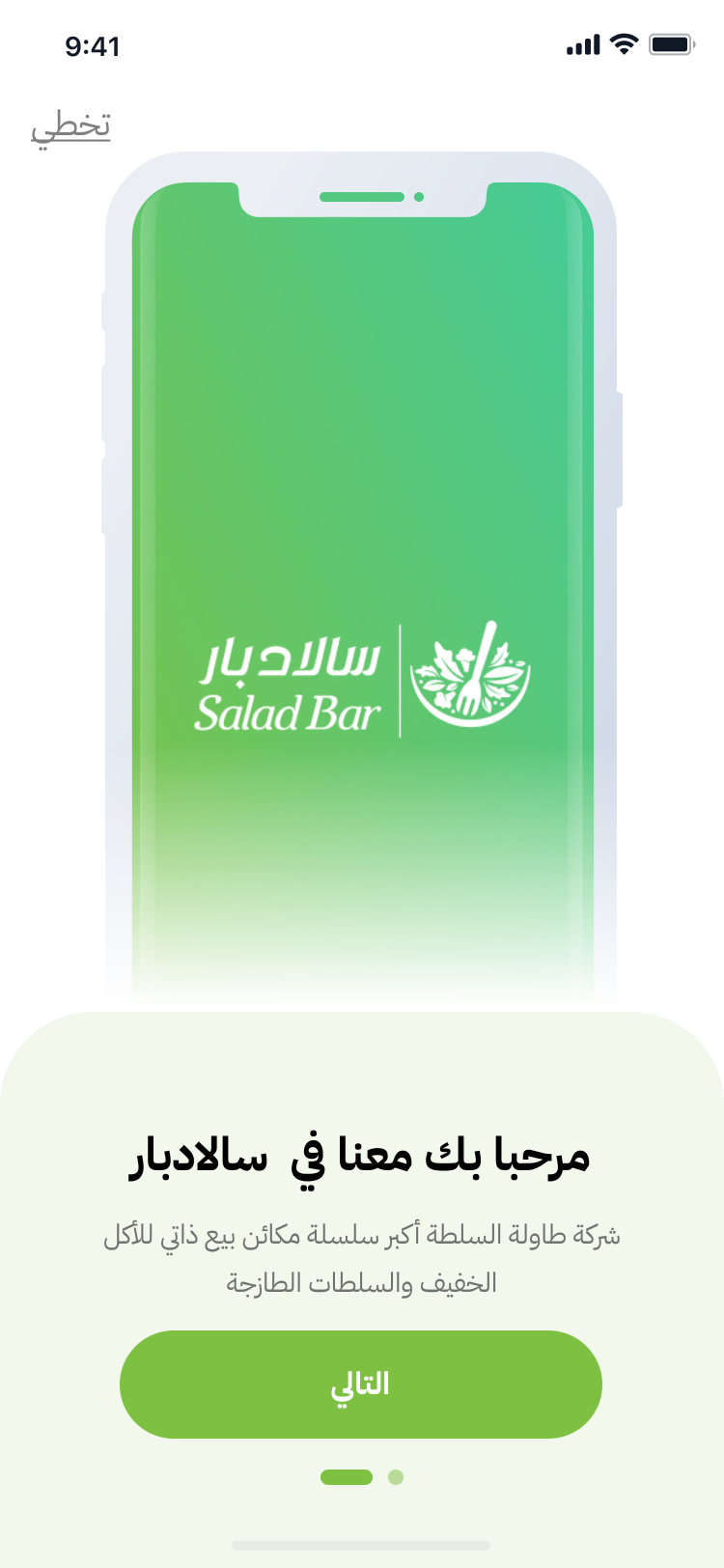
Onboarding — Welcome
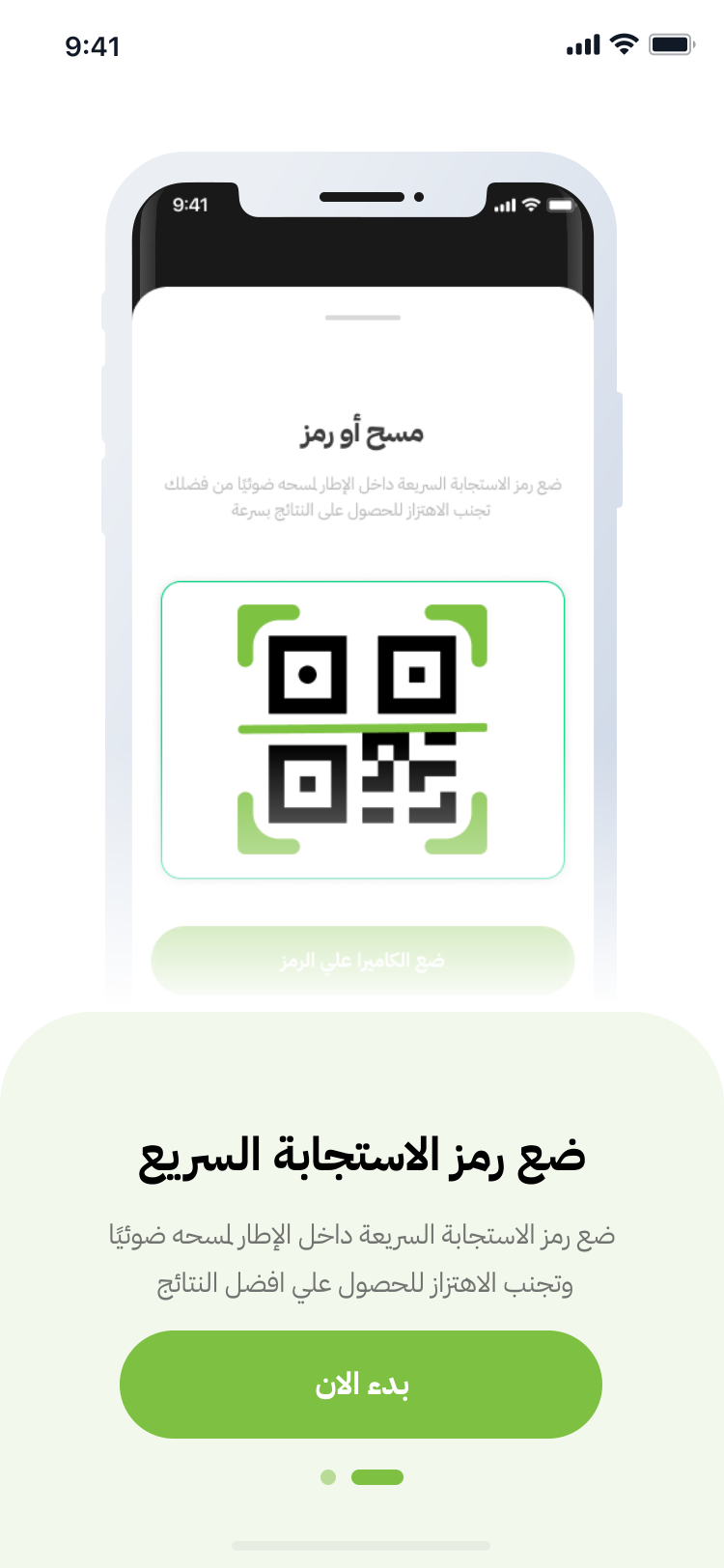
Onboarding — QR Scanner
QR Code Scanning
Camera-based scanning with real-time animation
Users scan the QR code on the vending machine to connect their phone to that specific unit. The scanner features a live camera feed with green corner brackets, a scanning line animation, and a processing spinner. The bottom sheet explains: "Place the QR code inside the frame and avoid shaking for best results."
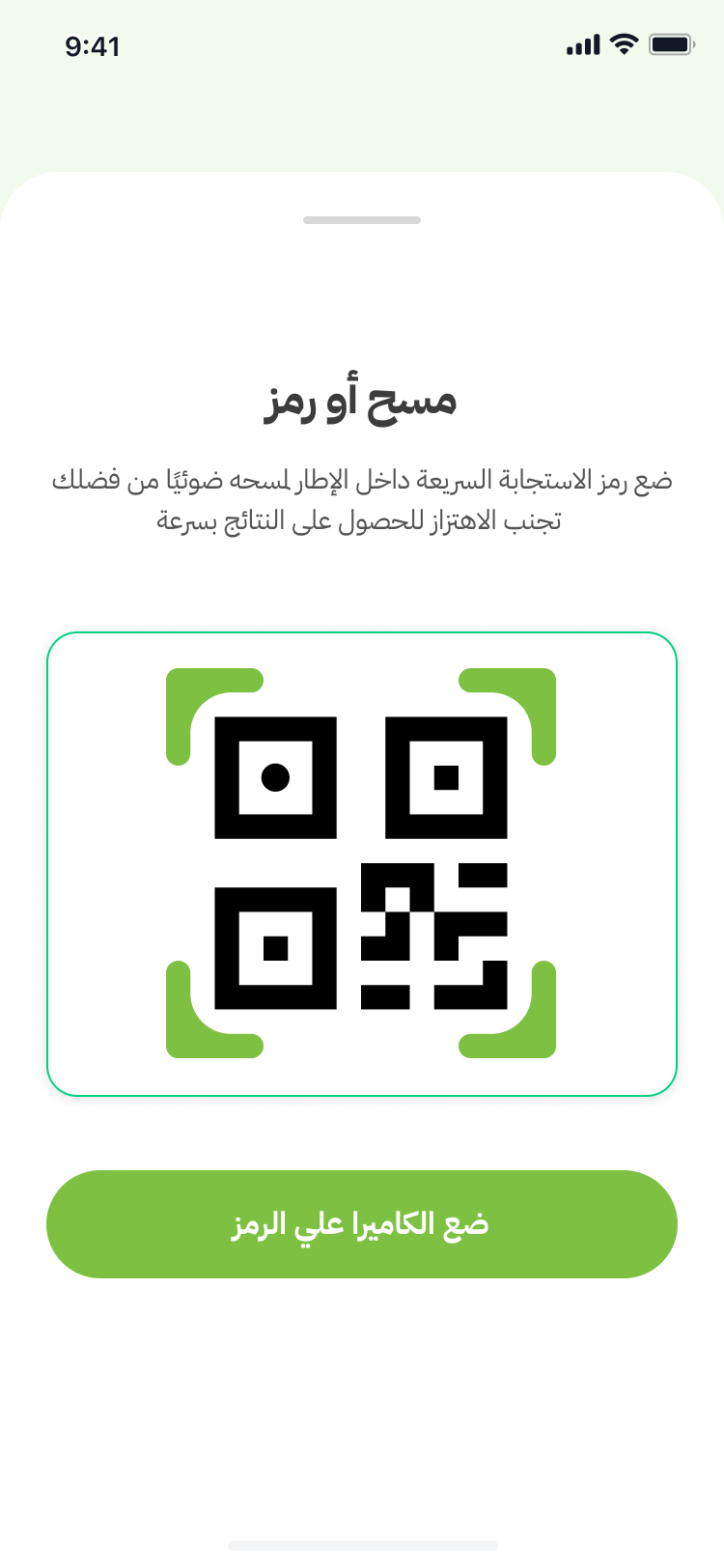
QR Scanner — Ready
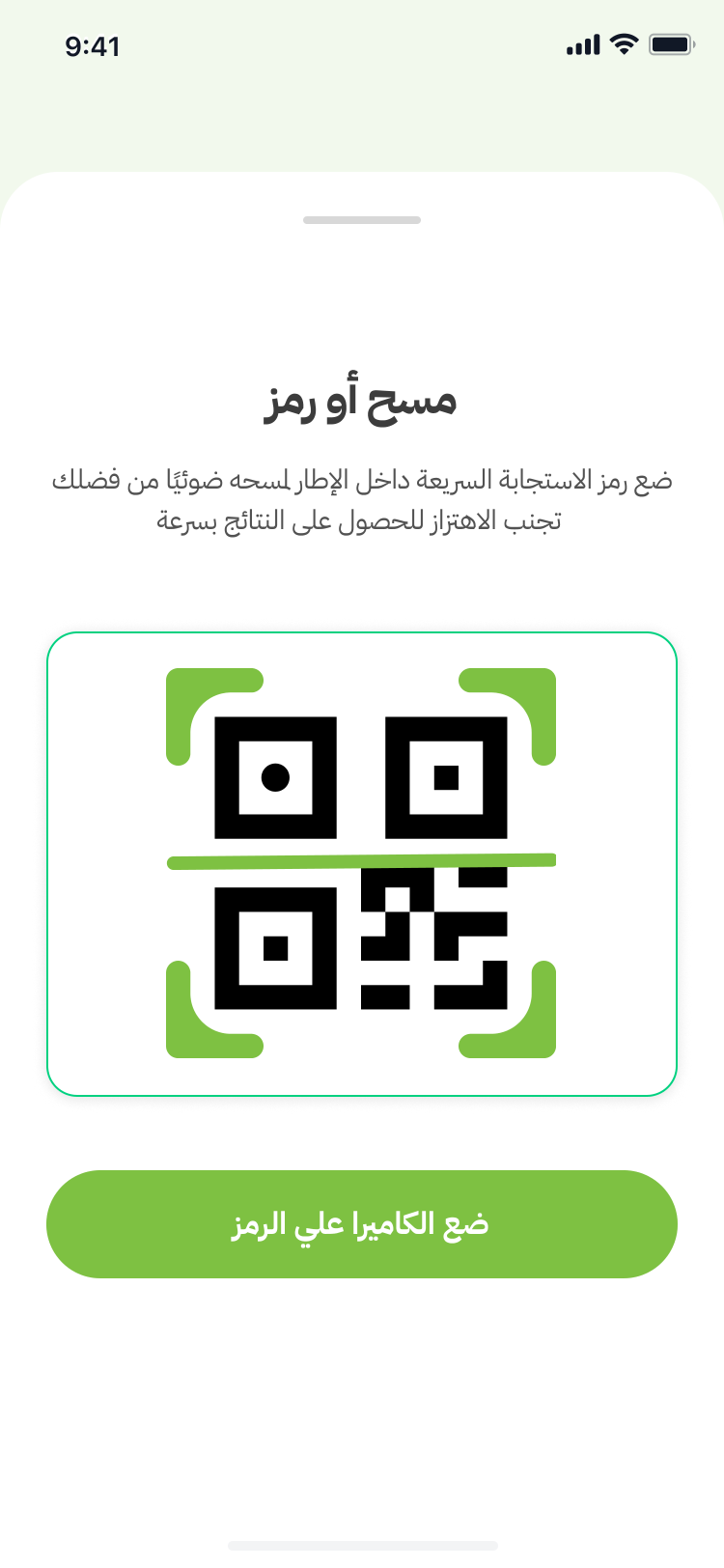
Scanning Line Animation
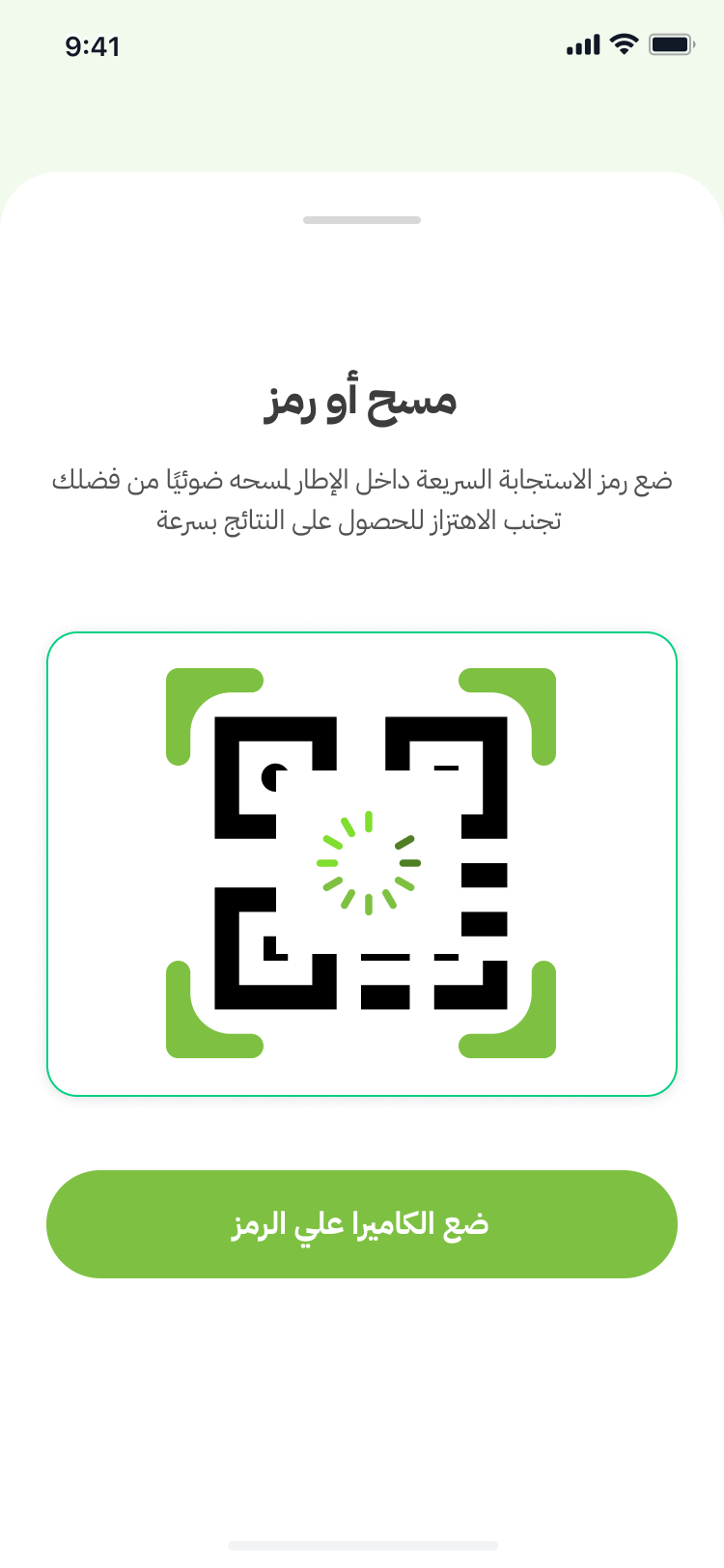
Processing QR...
Product Catalog
Live inventory fetched from the connected vending machine
After scanning, the app fetches the real-time product inventory from that specific machine via API. Products display in a 2-column grid with category filter tabs — All Products (كل المنتجات), Coca-Cola (كوكاكولا), Chipsy (شيبسي), Indomie (اندومي). Each product card shows a photo, Arabic name, category label, and price in SAR. A skeleton loading state appears while products load.
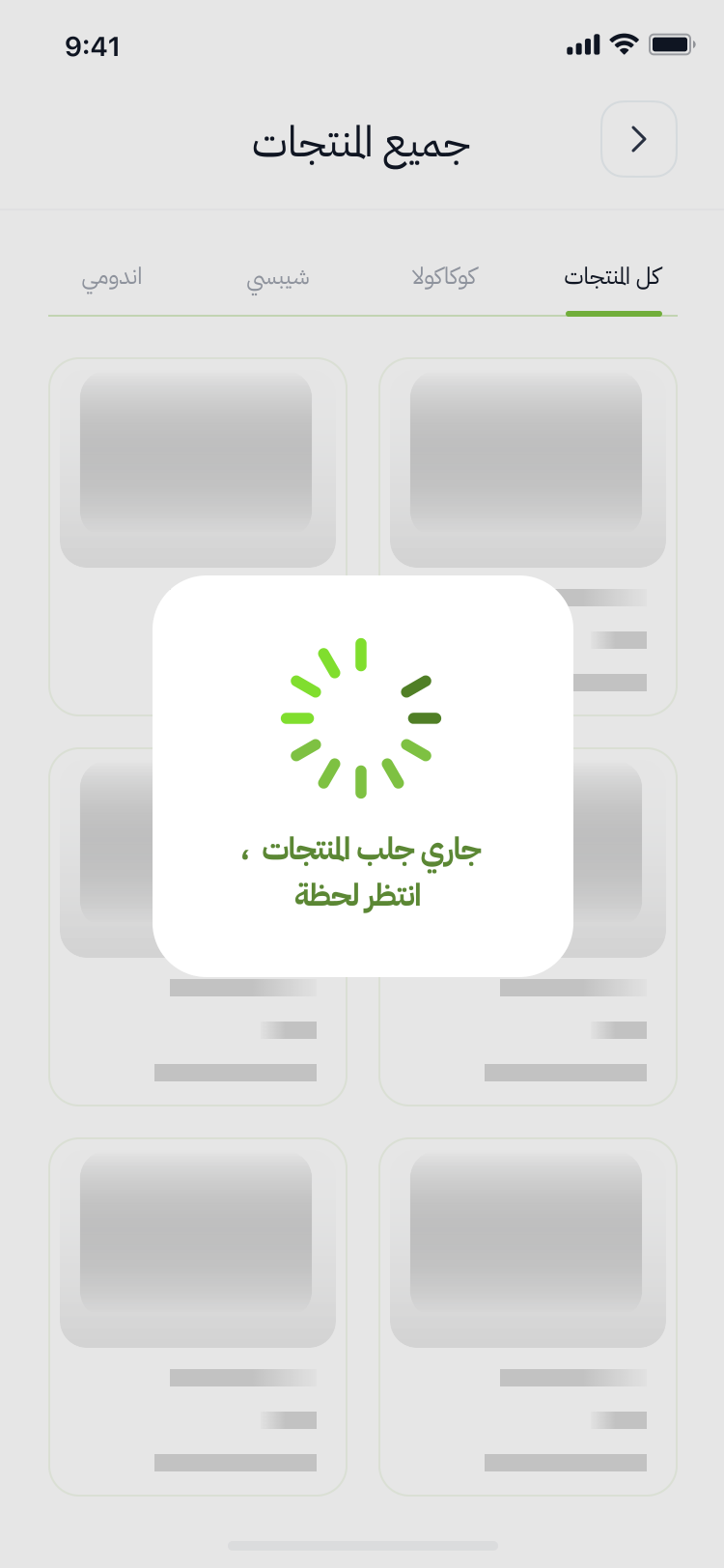
Loading — Spinner
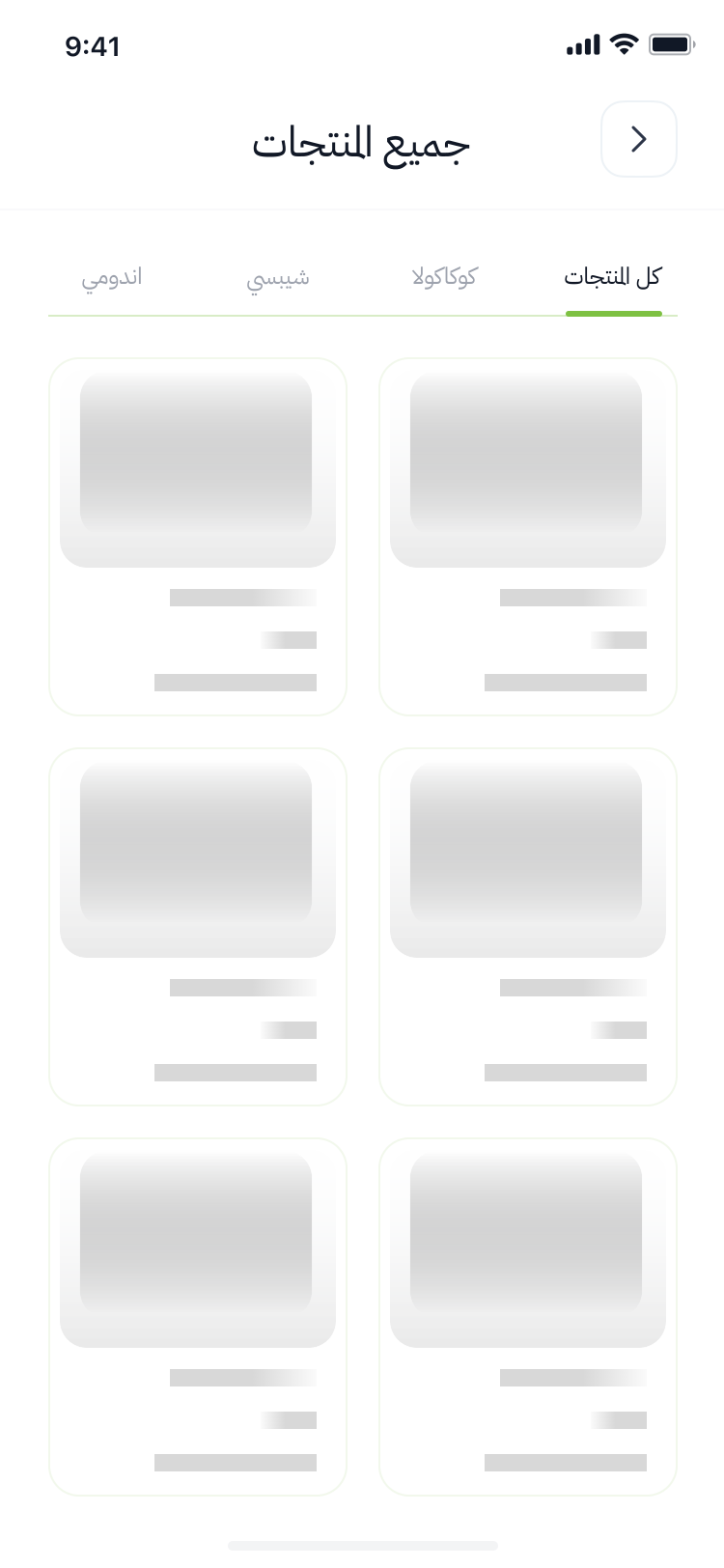
Skeleton Loading
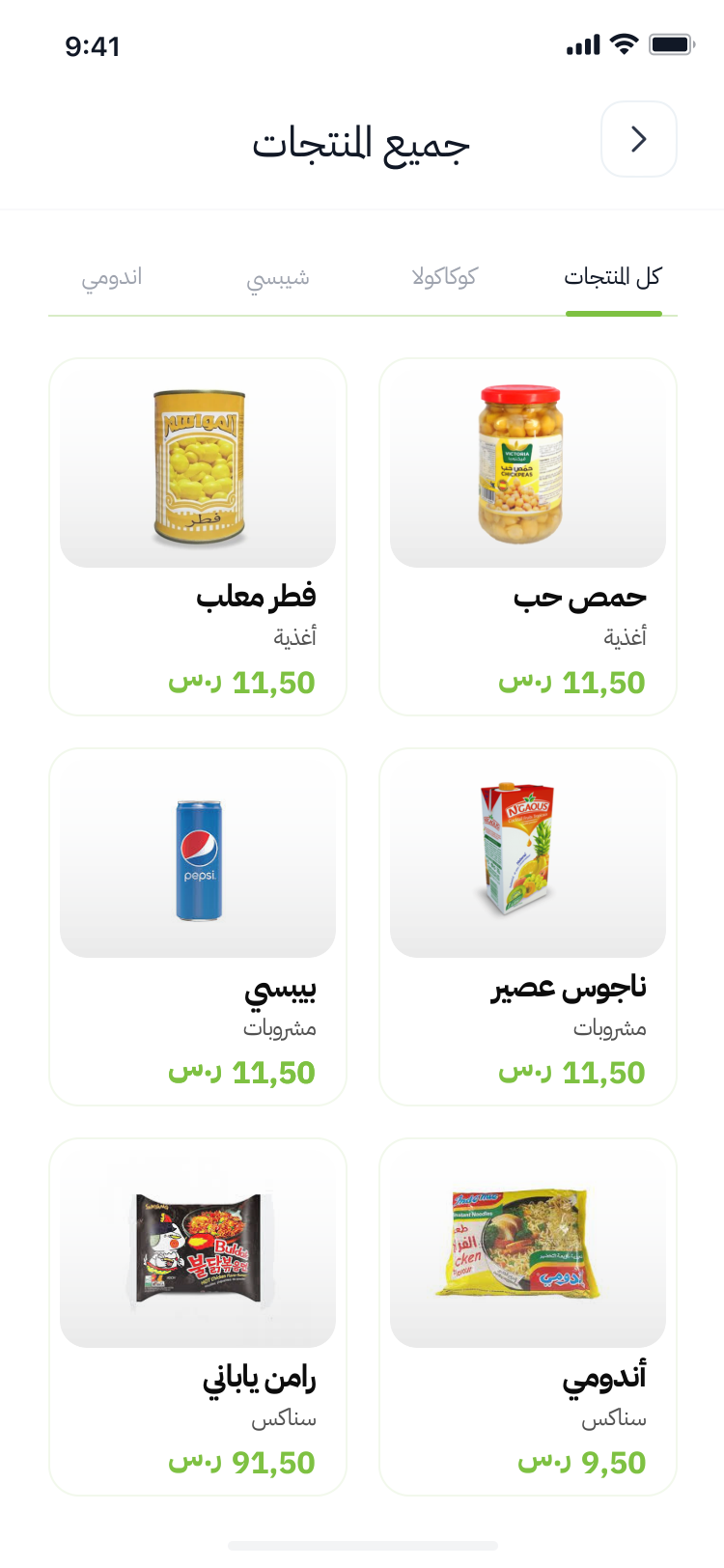
Product Grid — Loaded
Product Details & Cart
Quantity selection, promo codes, and price breakdown
Tapping a product opens a detail view showing the product photo, Arabic name, description, price in SAR (ريال سعودي), and a +/- quantity selector. A promo code input (رمز ترويجي) allows discount application. The bottom section shows subtotal (المجموع الفرعي), taxes & fees (الضرائب والرسوم), and total (المجموع الاجمالي) with item count. The green "Go to Payment" (الذهاب للدفع) CTA proceeds to checkout.
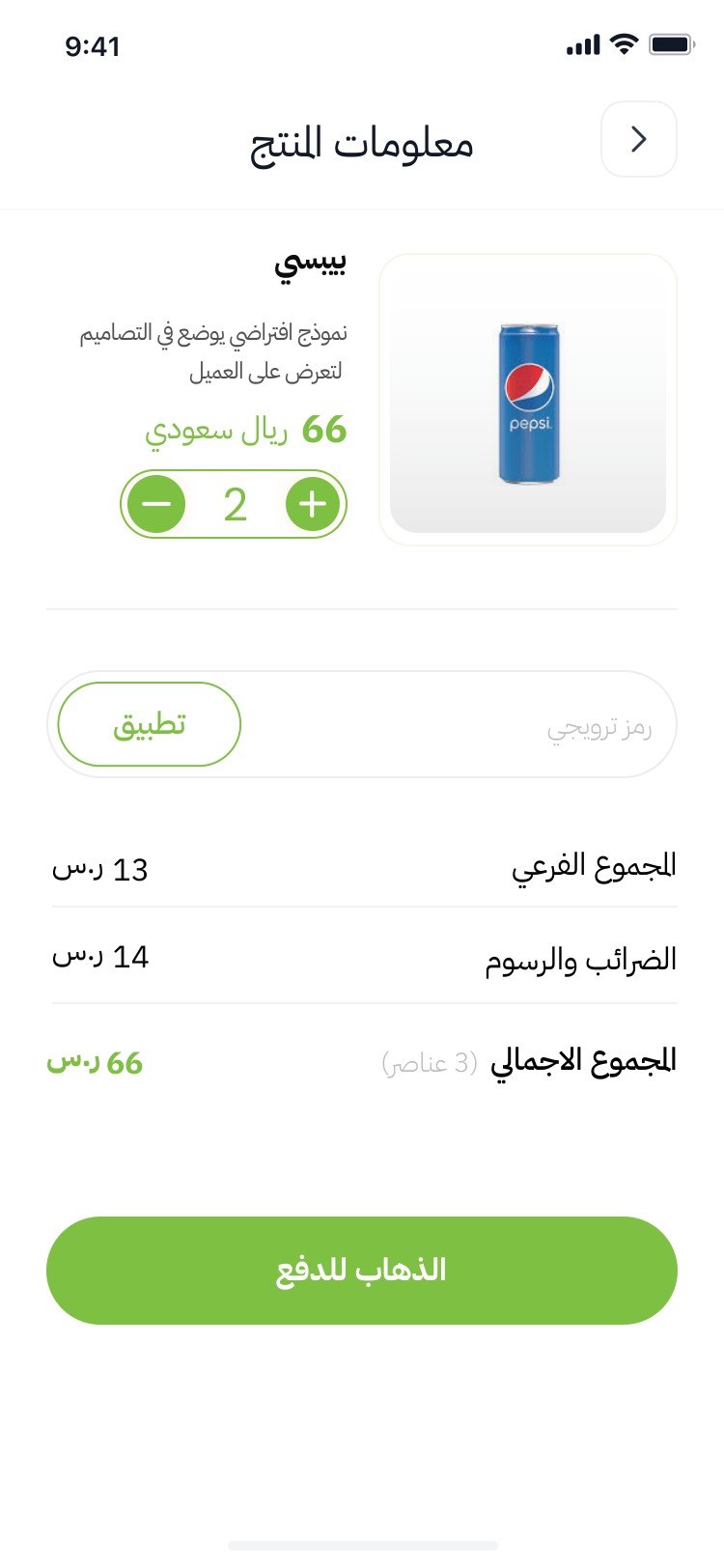
Product Detail — Pepsi
Payment Methods
Credit Card, Apple Pay, and PayPal with saved card management
Three payment options are available: Credit/Debit Card (بطاقة ائتمان), Apple Pay (أبل باي), and PayPal (باي بال). The credit card flow includes a horizontal carousel of saved cards showing card number, holder name, and expiry date with edit/delete actions. New cards are added via a full form with card number, CVV, expiry, and holder name fields.
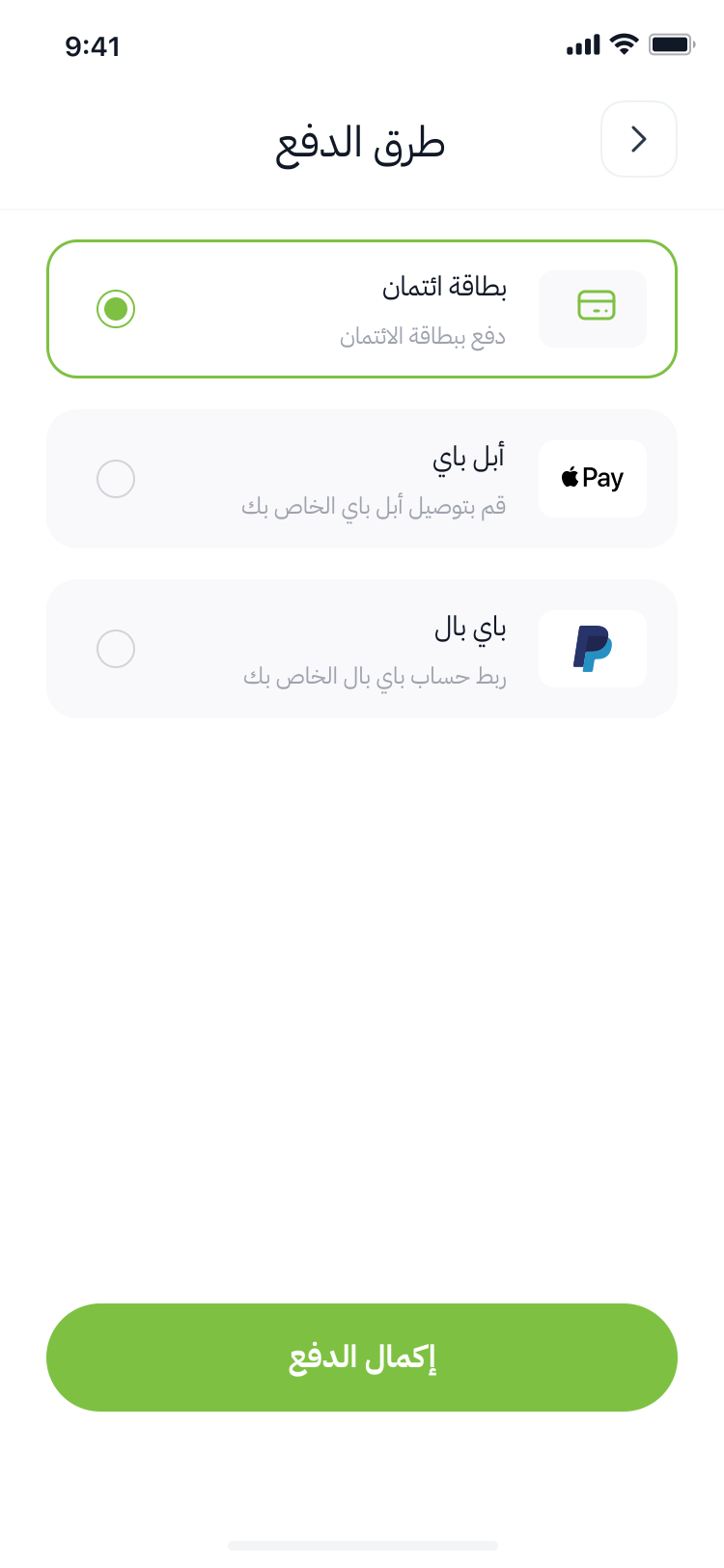
Payment Methods
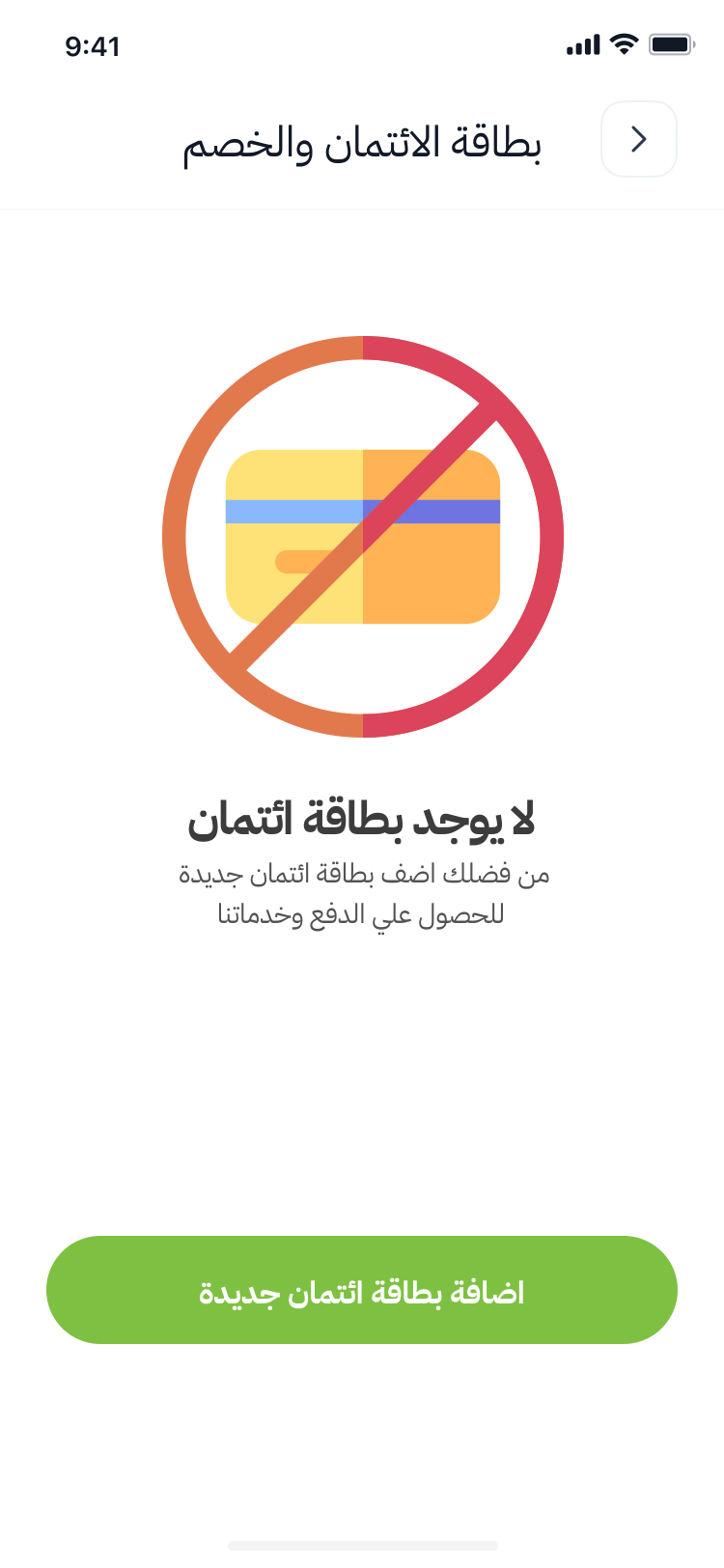
No Card — Add New
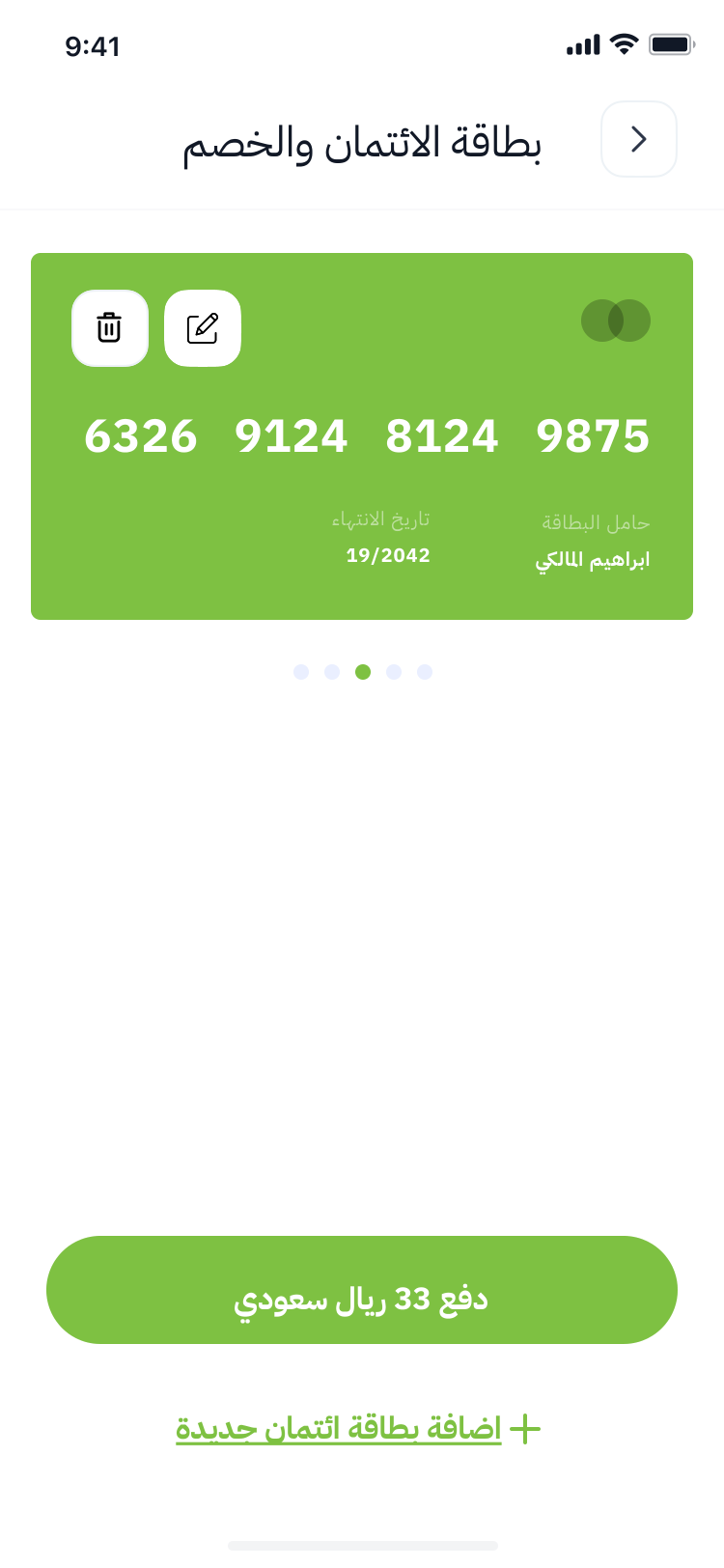
Saved Card Carousel
Card Management
Full card lifecycle — add, view, edit, delete
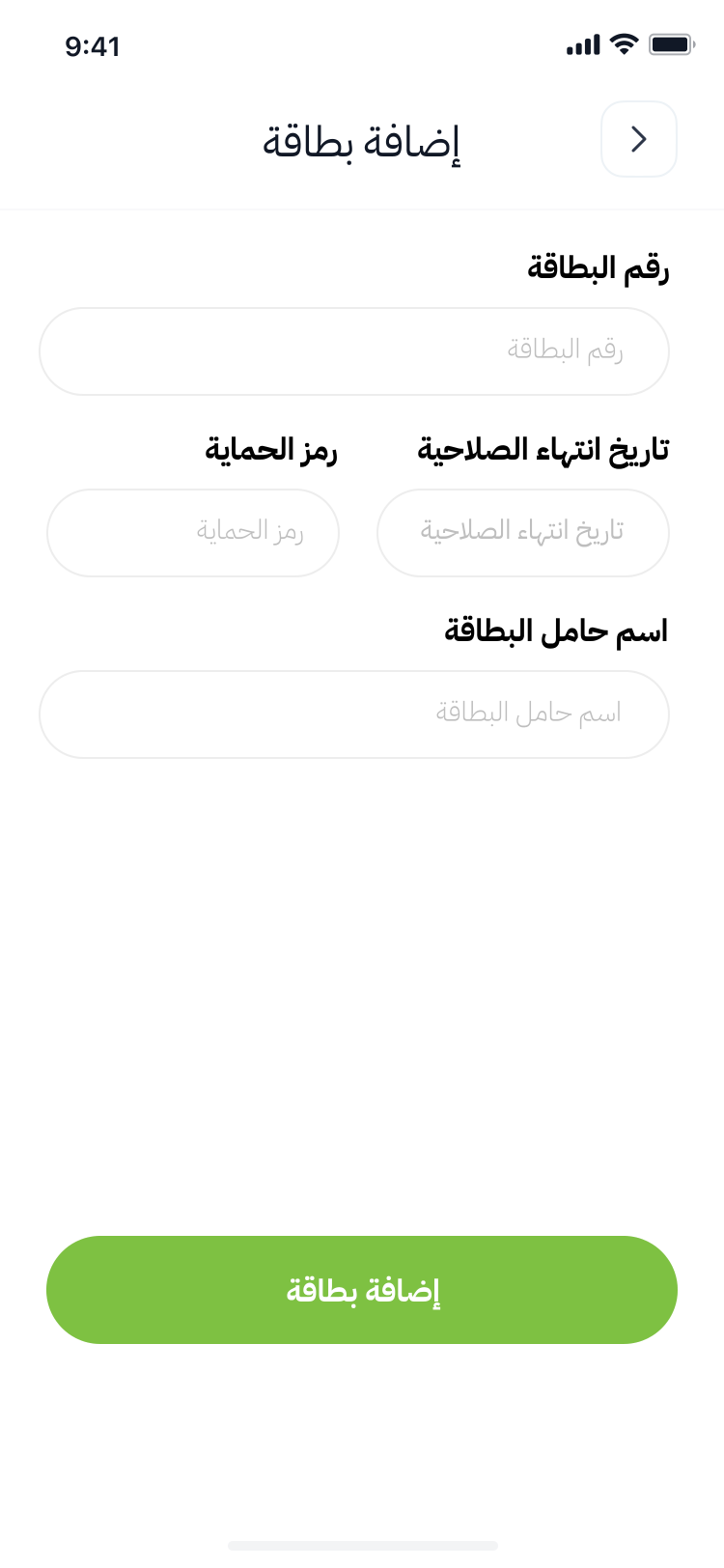
Add Card Form
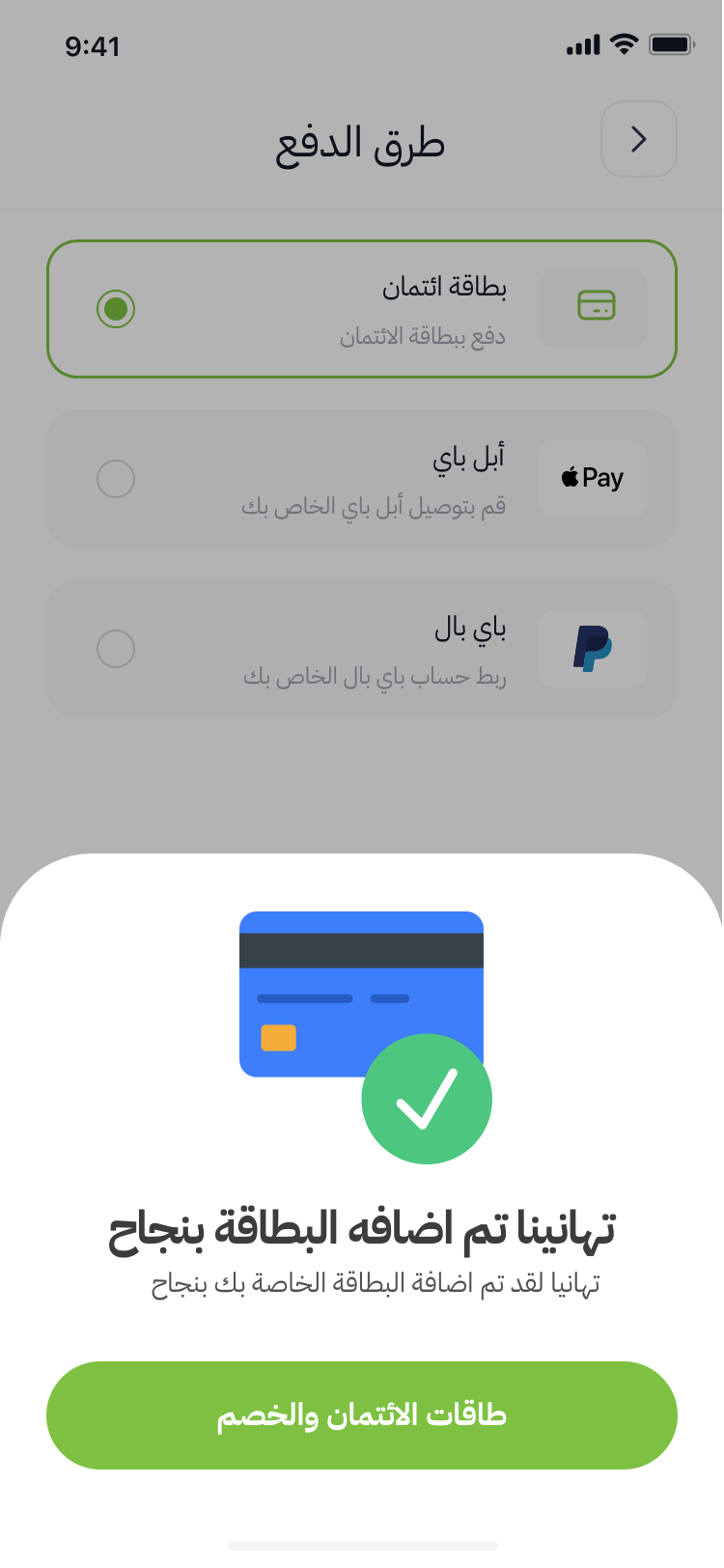
Card Added — Success
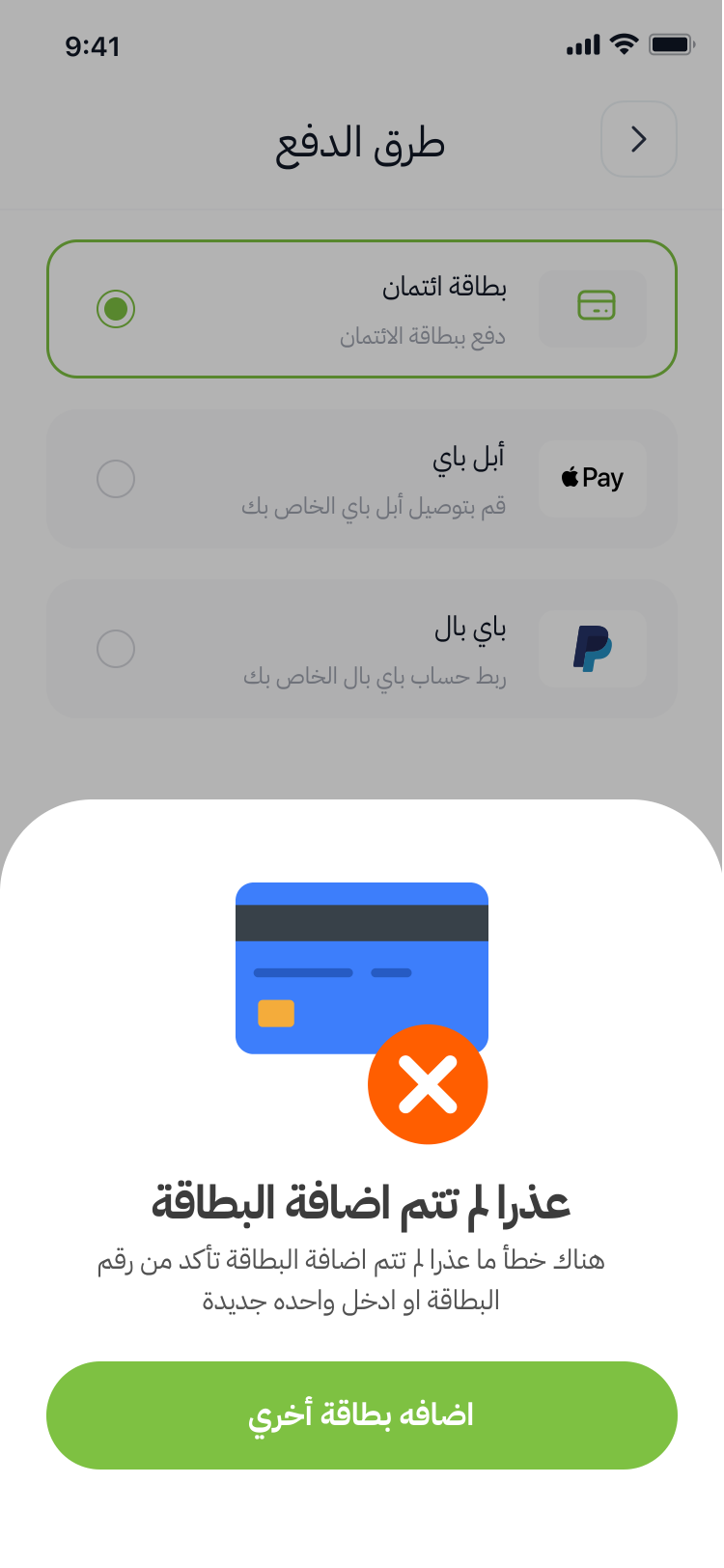
Card Add — Failed
Payment & Dispensing
Success, failure, and product collection flows
After successful payment, the app shows a celebration with confetti animation (تهانينا تم الدفع بنجاح) and prompts the user to collect their product from the machine. The machine receives the payment confirmation via API and automatically dispenses the product. If payment fails, a clear error screen shows the reason with a retry option.
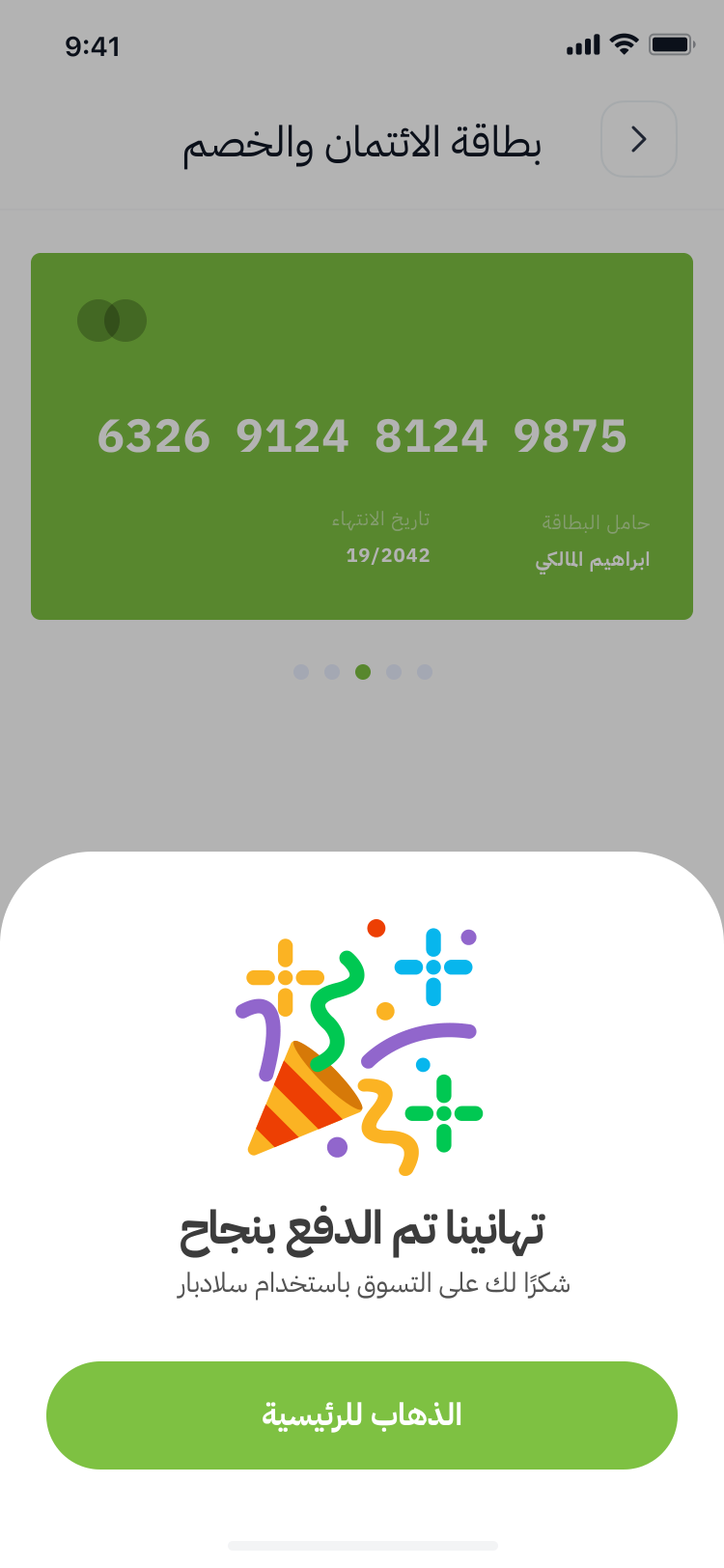
Success — Confetti
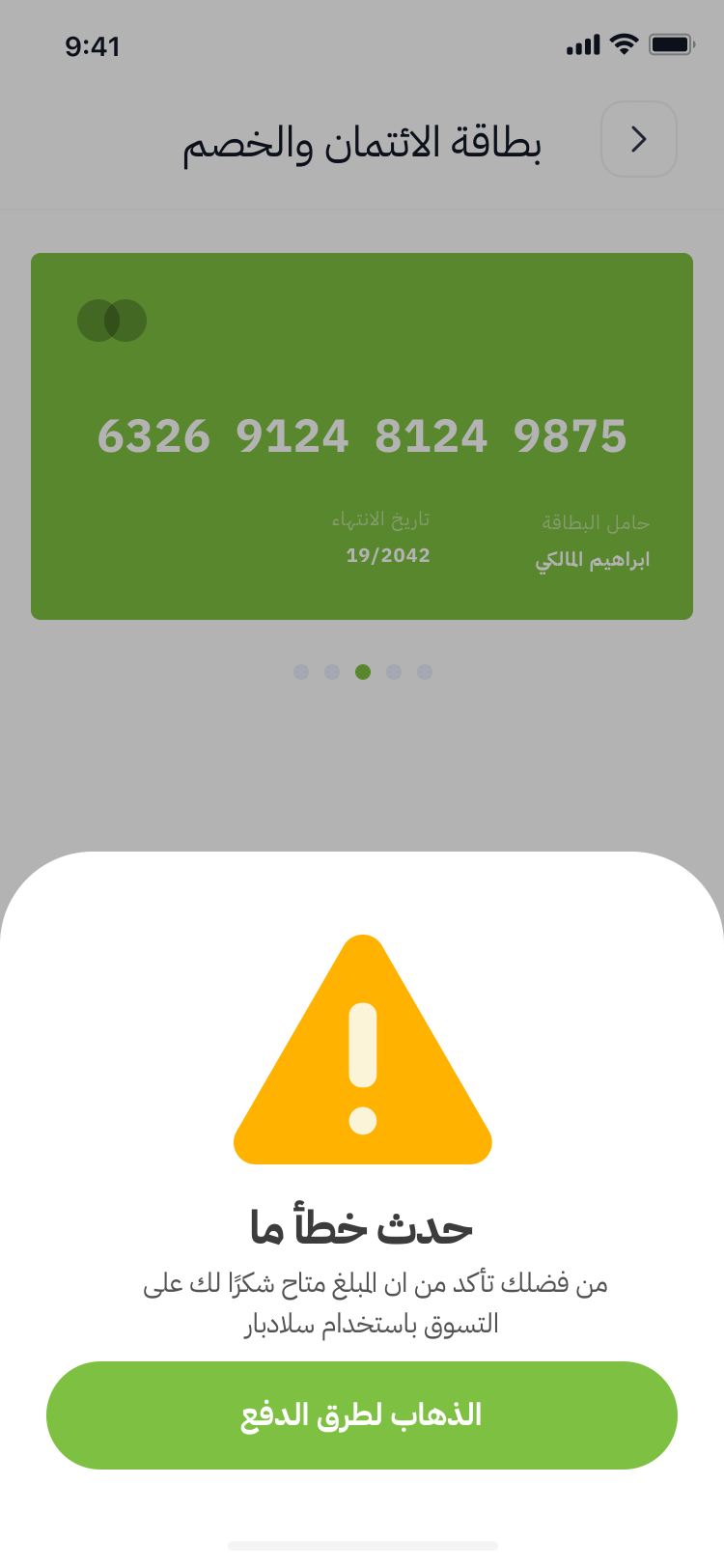
Payment Error
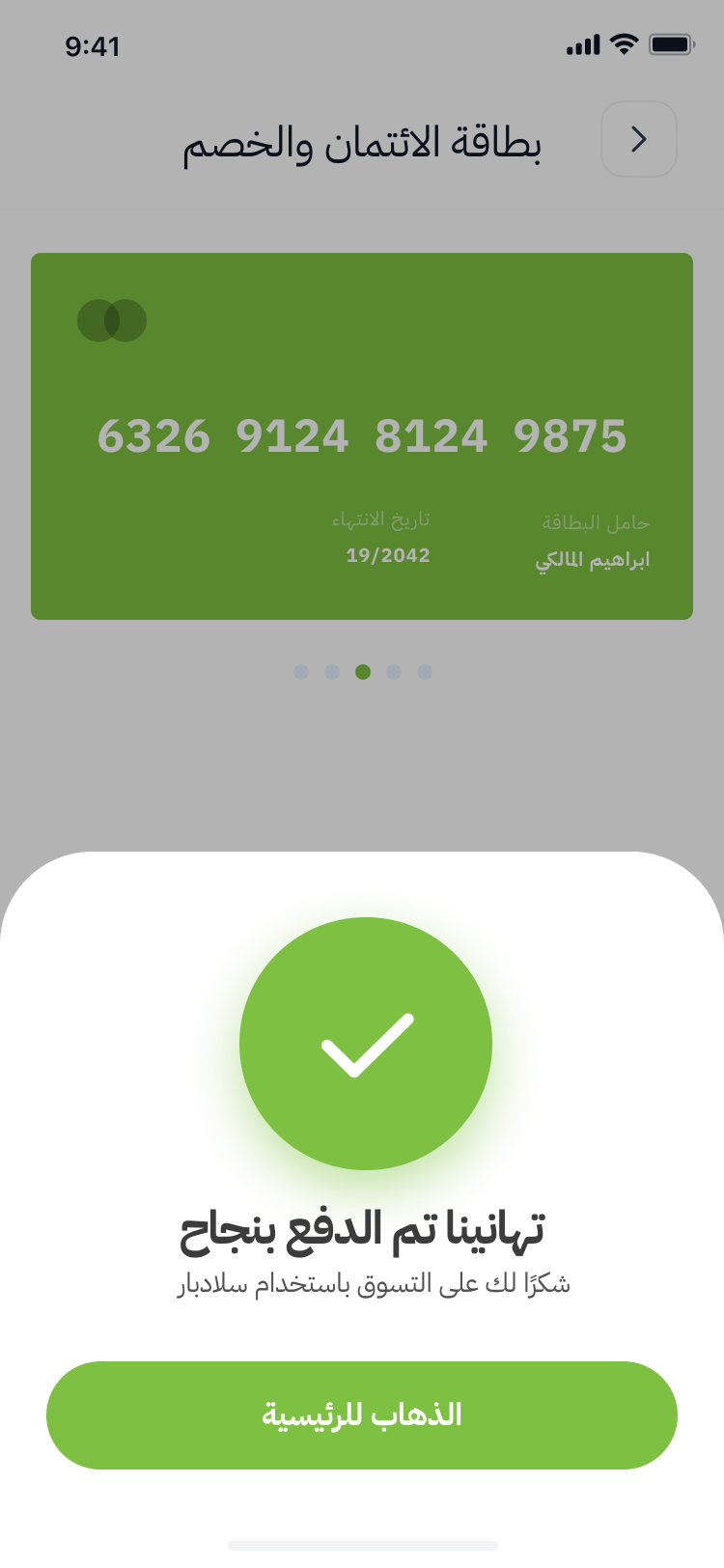
Success — Checkmark
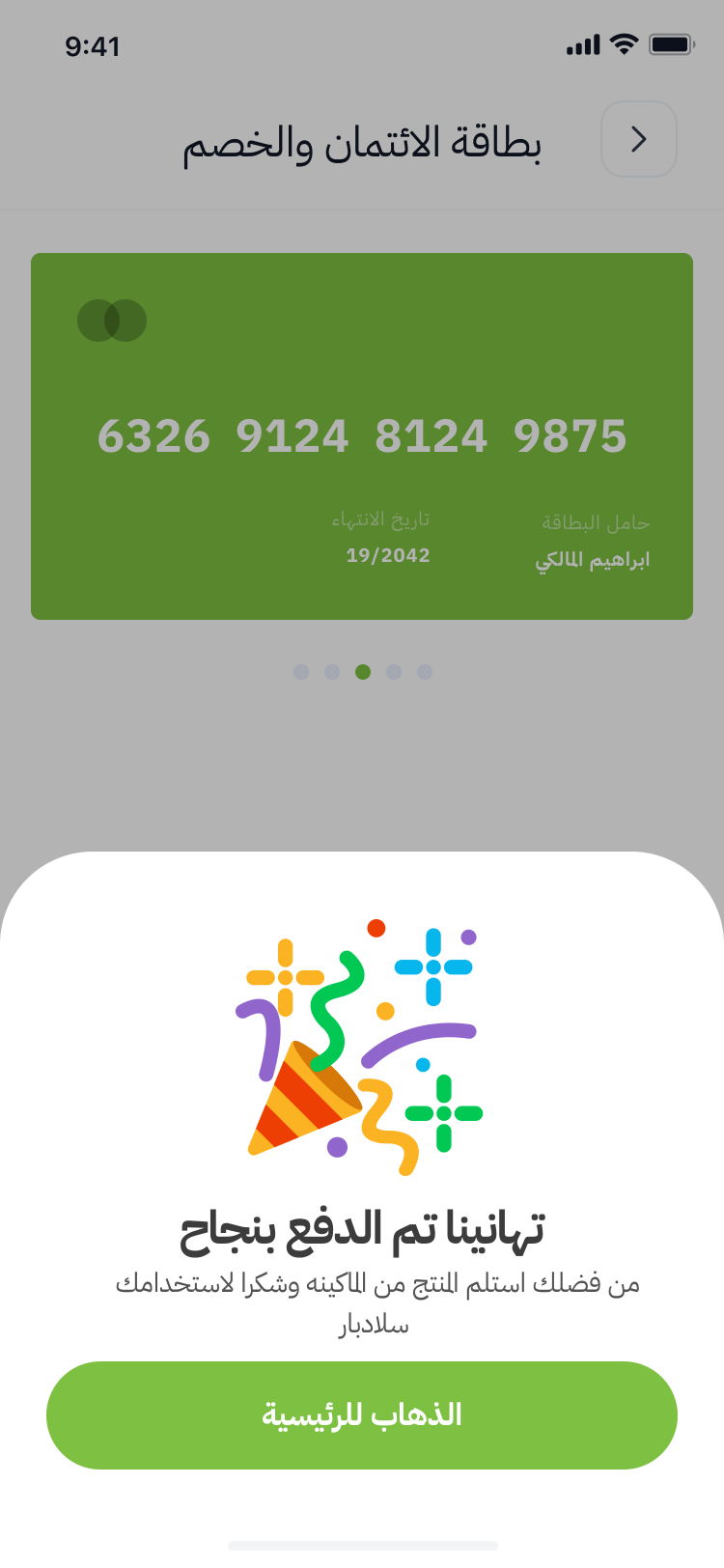
Collect Product
Error Handling
Comprehensive edge case coverage
The app handles every edge case with clear, bilingual error screens: general errors with retry, no internet connection (عذرا لا يوجد انترنت) with a reload button, and empty machine inventory (عذرا لا تتوفر منتجات حاليا) directing users to try another machine. Each error state includes an illustrated icon and actionable button.
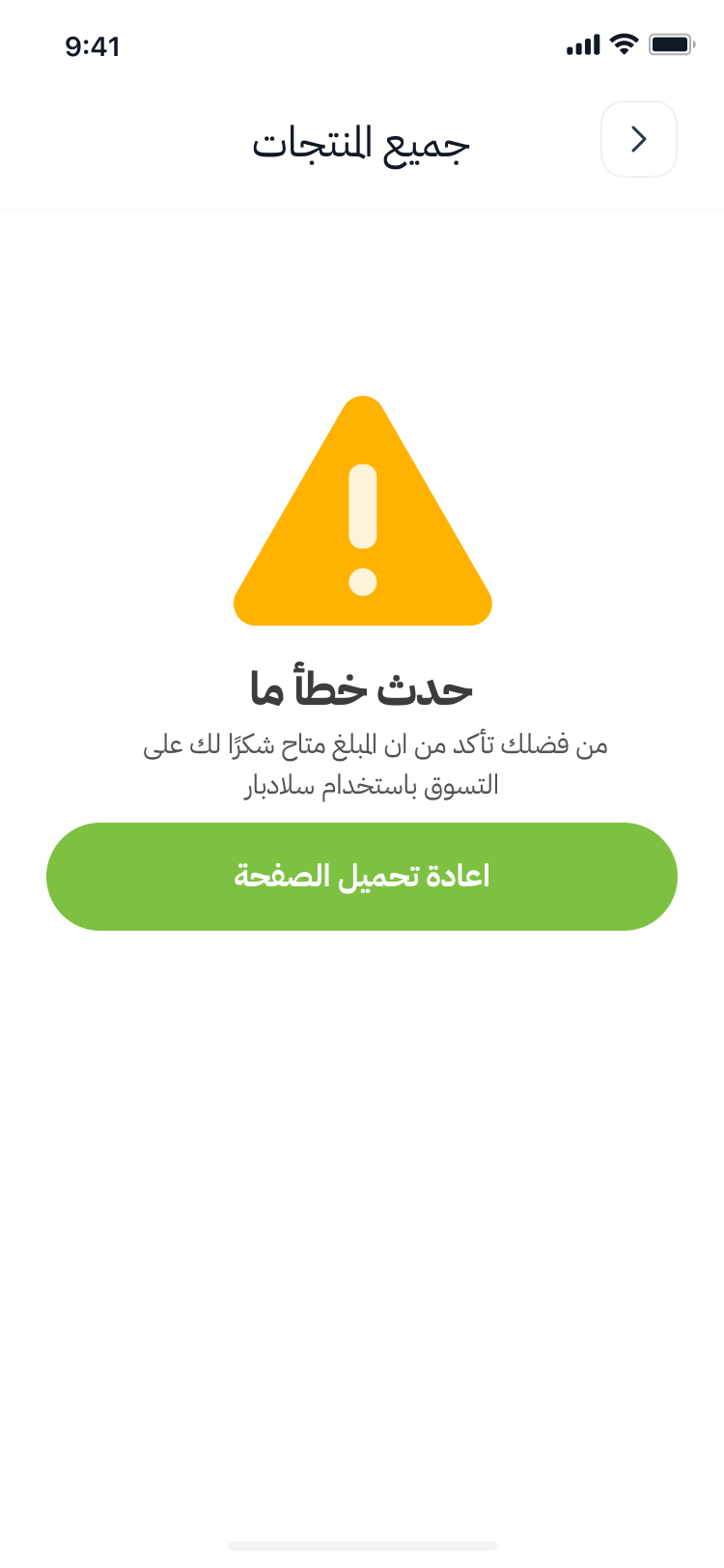
Error — Something Wrong
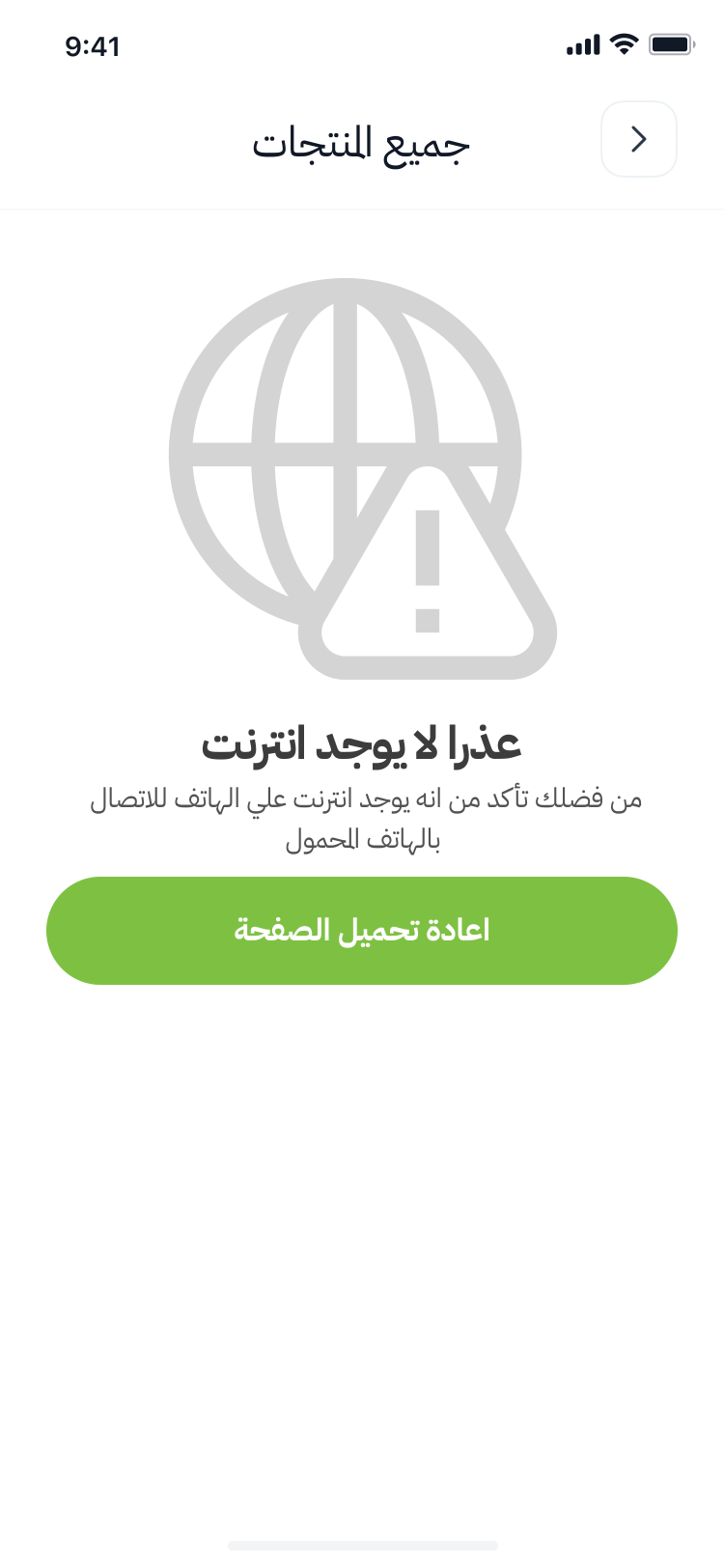
No Internet
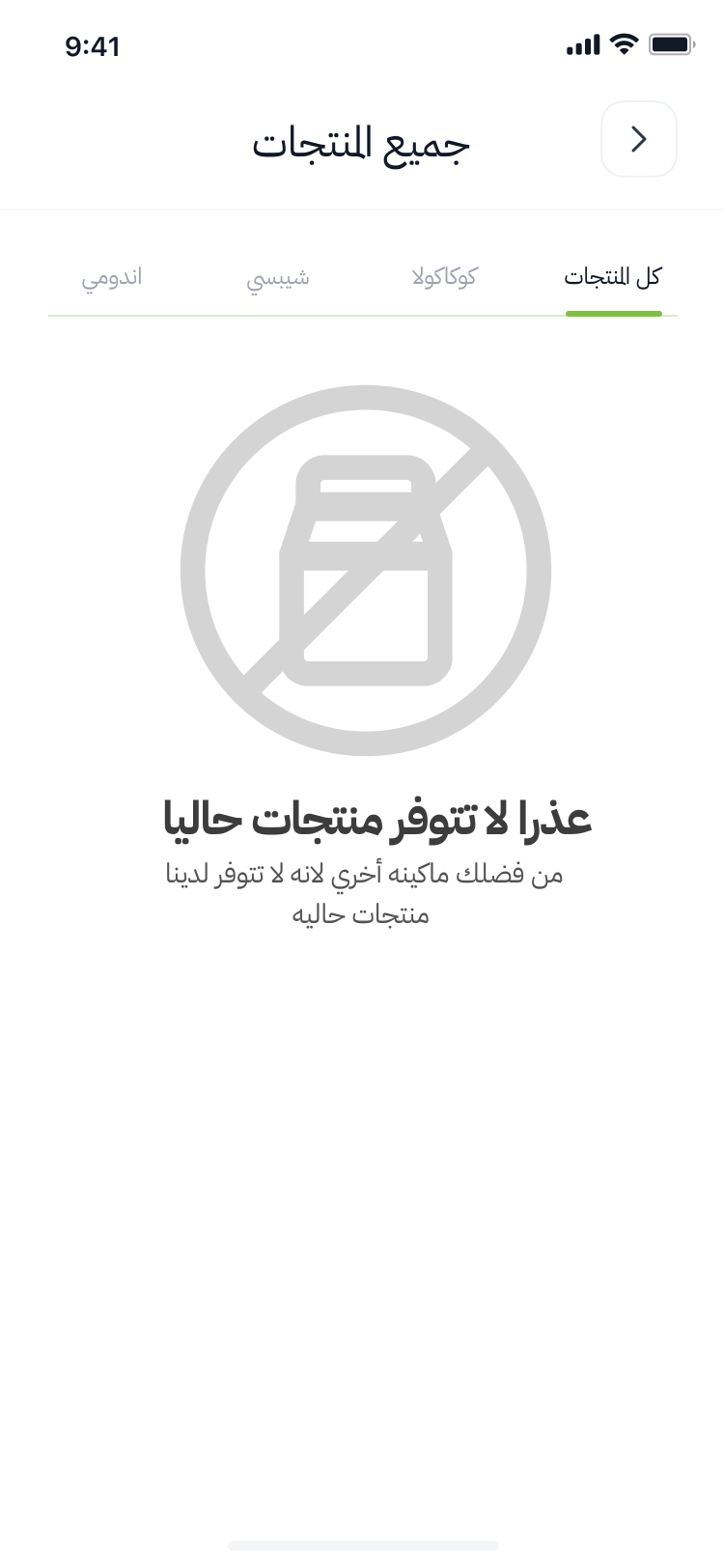
No Products Available
Technical Architecture
How the phone talks to the vending machine
┌─────────────────┐      ┌─────────────────────┐      ┌──────────────────┐
│   MOBILE APP    │      │   BACKEND SERVER     │      │  VENDING MACHINE │
│   (Flutter)     │      │   (REST API)         │      │  (Hardware)      │
│                 │      │                      │      │                  │
│  1. Scan QR   ──┼─────>│  Identify Machine    │      │                  │
│                 │      │                      │      │                  │
│  2. Browse    <─┼──────┼─ Return Inventory    │<─────┼── Sync Products  │
│     Products    │      │                      │      │                  │
│                 │      │                      │      │                  │
│  3. Add to     ─┼─────>│  Validate Cart       │      │                  │
│     Cart        │      │  Process Payment     │      │                  │
│                 │      │                      │      │                  │
│  4. Pay        ─┼─────>│  Charge Card/Wallet  │      │                  │
│                 │      │  Confirm Payment    ──┼─────>│  Dispense Slot   │
│                 │      │                      │      │                  │
│  5. Collect   <─┼──────┼─ Dispense Confirmed  │<─────┼── Drop Sensor OK │
│     Product     │      │  Log Transaction     │      │                  │
└─────────────────┘      └──────────────────────┘      └──────────────────┘
QR-Based Machine Identification
Each machine has a unique QR code. Scanning connects the app to that specific unit's inventory via the backend API.
Real-Time Inventory Sync
Product availability, prices, and categories are fetched live from the machine. If a slot is empty, it's not shown.
Secure Payment Processing
Payments processed via backend — Credit Card (tokenized), Apple Pay, PayPal. Machine never handles payment data.
Automatic Dispensing
After payment confirmation, the backend signals the machine to activate the specific slot's spring motor. Drop sensor verifies delivery.
Key Features
What makes this vending app stand out
Cashless Payments
Credit card, Apple Pay, and PayPal integration — no cash needed at the machine.
Live Machine Inventory
Products fetched in real-time from the specific machine. Always see what's actually available.
Category Filtering
Browse by product type: food, drinks, snacks. Quickly find what you want.
Promo Code Support
Apply discount codes at checkout for promotional campaigns and corporate deals.
Saved Card Management
Store multiple cards securely. Quick checkout with saved payment methods.
Full Arabic RTL
Complete bilingual support with right-to-left layout for Arabic users.
Skeleton Loading
Smooth loading experience with skeleton placeholders while products fetch.
Error Recovery
Every error has a clear message and actionable recovery: retry, reload, or try another machine.
23 Screens
Complete user journey with 23 polished screens covering every flow and edge case.