
Wasfty — Automated Medication Dispensing
A self-service pharmacy kiosk that replaces traditional pharmacy counters with vending machines. Integrated with Saudi Arabia’s national Wasfaty (NUPCO) e-Prescribing platform. Patients scan a QR code or enter a prescription reference number, and the machine automatically dispenses their medications with printed labels — no pharmacist counter needed.
Key Highlights
Full 9-step Wasfaty dispensing cycle: download eRx, trade advisor, patient history, payer authorization, claim submission
YS Spring Vending Machine platform with 15–21″ capacitive touchscreen, QR scanner, spring motor dispensers, and drop sensors
Android kiosk app built with Kotlin + Jetpack Compose running on YS 5″ mainboard
Bilingual UI (Arabic/English) with real-time language toggle for patient interaction
QR code scanning + manual reference number entry with National ID for prescription lookup
Prescription preview screen showing patient details, prescribing hospital, available medications with dosage and quantities
Automated spring motor dispensing with per-slot infrared drop detection to verify delivery
Thermal label printing (ESC/POS) with medication name, dosage, and instructions in Arabic + English
Admin panel with PIN-protected access: lift control, door/partition toggles, LED/heating controls, slot configuration (spring/belt), merge/split slots, factory reset
Backend integration via WebSocket for real-time heartbeat, inventory sync, and transaction reporting
Offline mode with local caching and automatic retry when connectivity is restored
SFDA, NHIC, SCFHS regulatory compliance for medication dispensing in Saudi Arabia
Kiosk Walkthrough — 10 Screens
Welcome & QR Scan
The kiosk greets patients with the Wasfaty (وصفتي) bilingual logo and “Welcome to Self-Service Pharmacy.” The header bar shows the machine ID (VM-XYS-001), location (Riyadh Central Mall — Floor 1), online status, and last sync time. Patients scan their prescription QR code using the built-in 2D barcode scanner, or manually enter the Reference Number from their SMS along with their National ID.
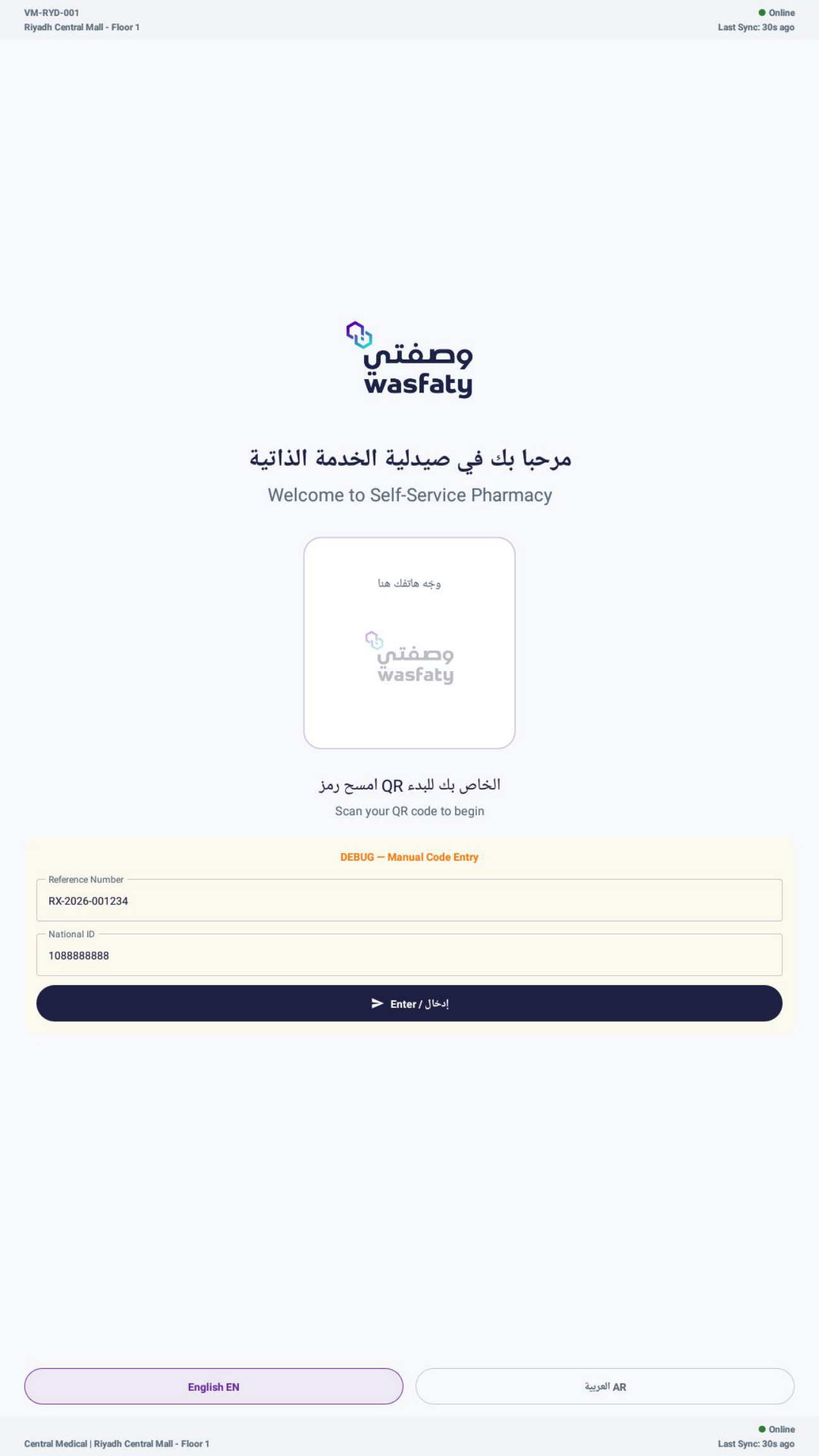
Welcome — QR Scan & Manual Entry
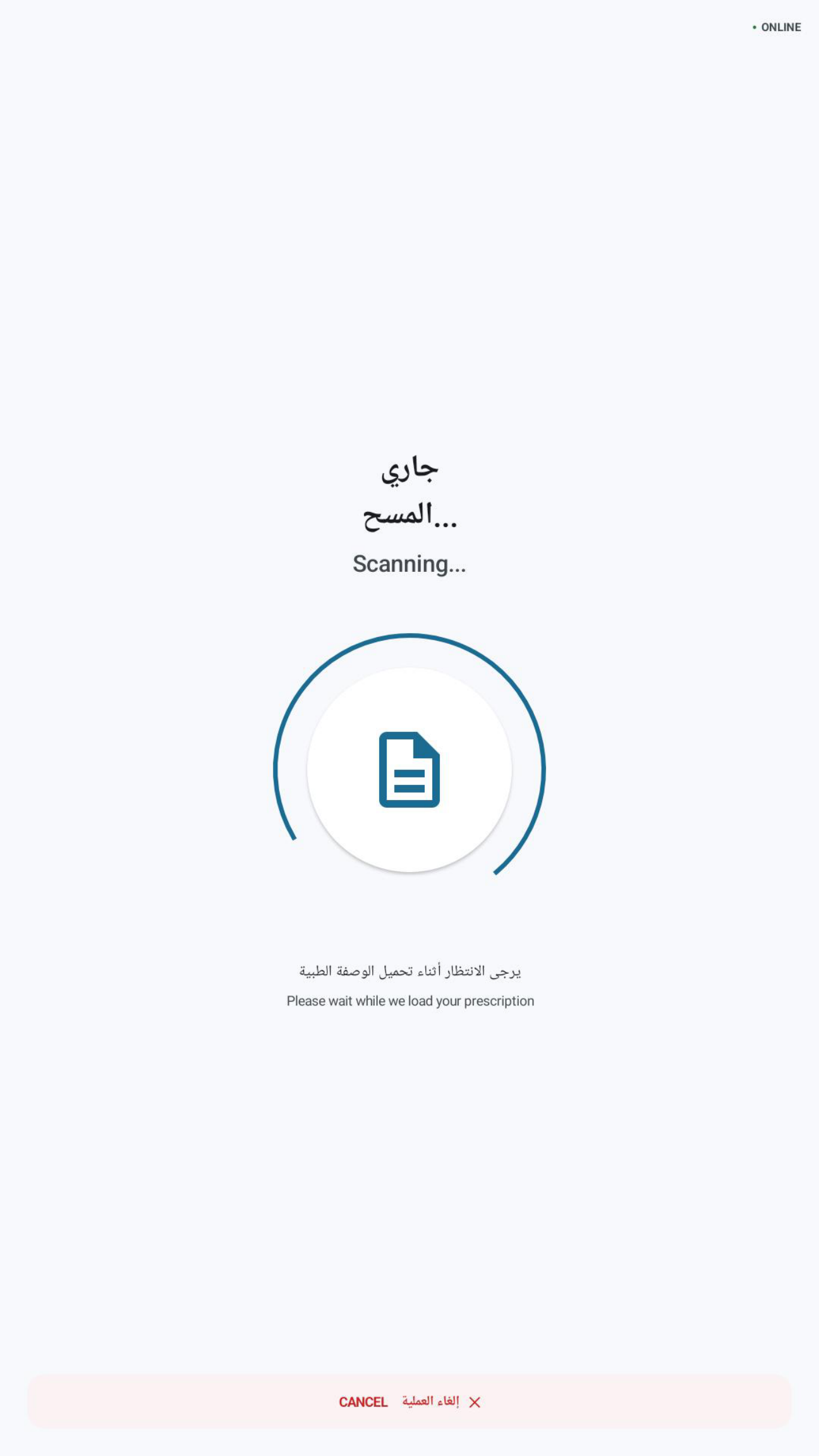
Scanning Prescription
| # | Screen |
|---|---|
| 1 | Welcome — QR Scan & Manual Entry |
| 2 | Scanning Prescription |
Prescription Preview
After scanning, the system downloads the e-prescription from the Wasfaty Hub and displays full details: patient name (masked for privacy), National ID, prescribing date, hospital (e.g. King Fahad Hospital), and number of available medications. Each medication card shows the drug name (e.g. Panadol Extra 500mg), form (Tablet), dosage (500mg, Oral), quantity (1 box), and availability status with a green checkmark. The patient confirms with “Confirm & Dispense.”
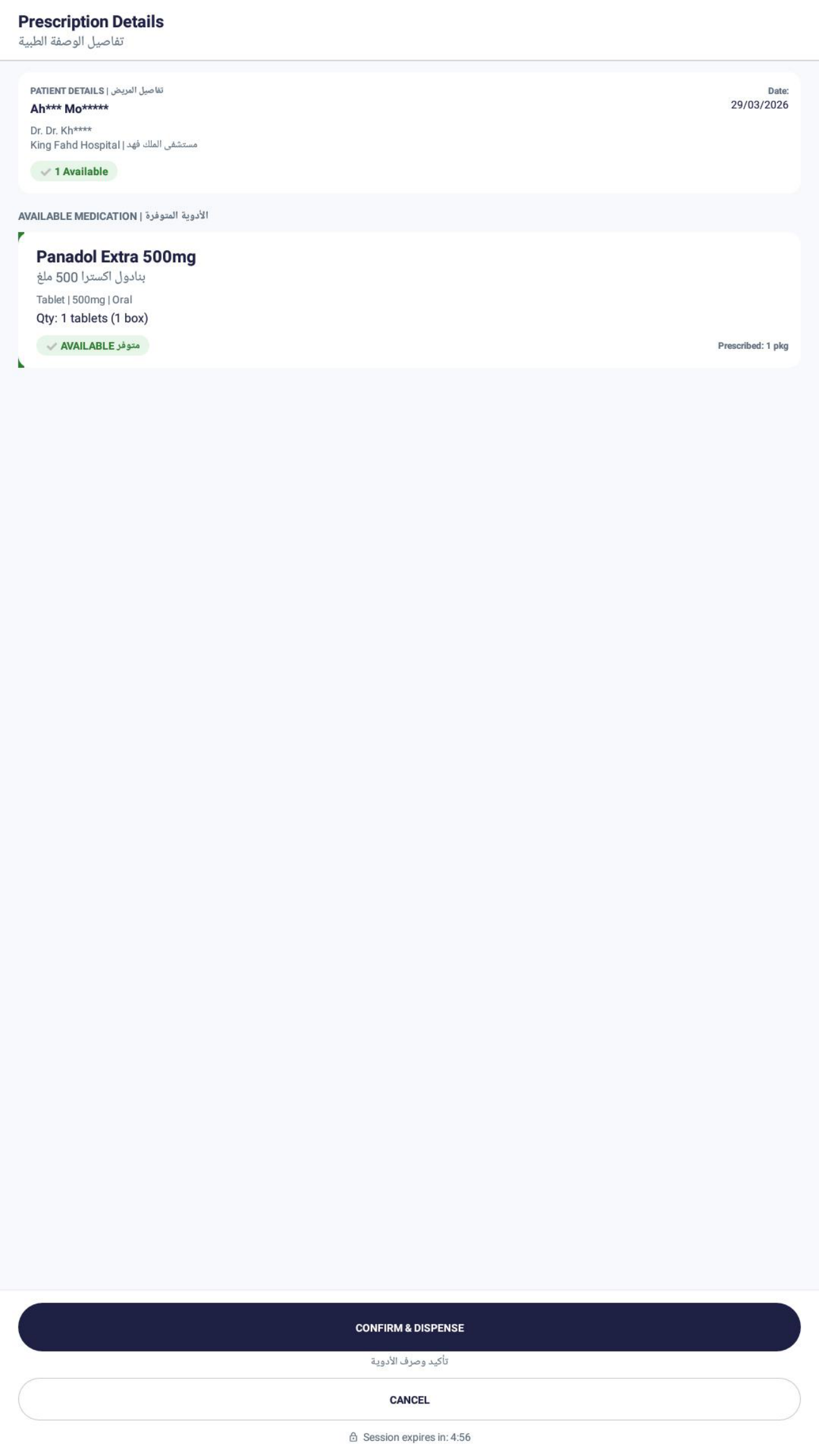
Prescription Details & Medications
| # | Screen |
|---|---|
| 1 | Prescription Details & Medications |
Processing & Authorization
The system processes the prescription through the full Wasfaty 9-step cycle: authorization request to the payer, polling for approval, downloading the result, and preparing for dispensing. A circular progress indicator shows the percentage with bilingual text — “Processing your prescription / جاري معالجة الوصفة الطبية.” The process may take up to 2 minutes depending on payer response.
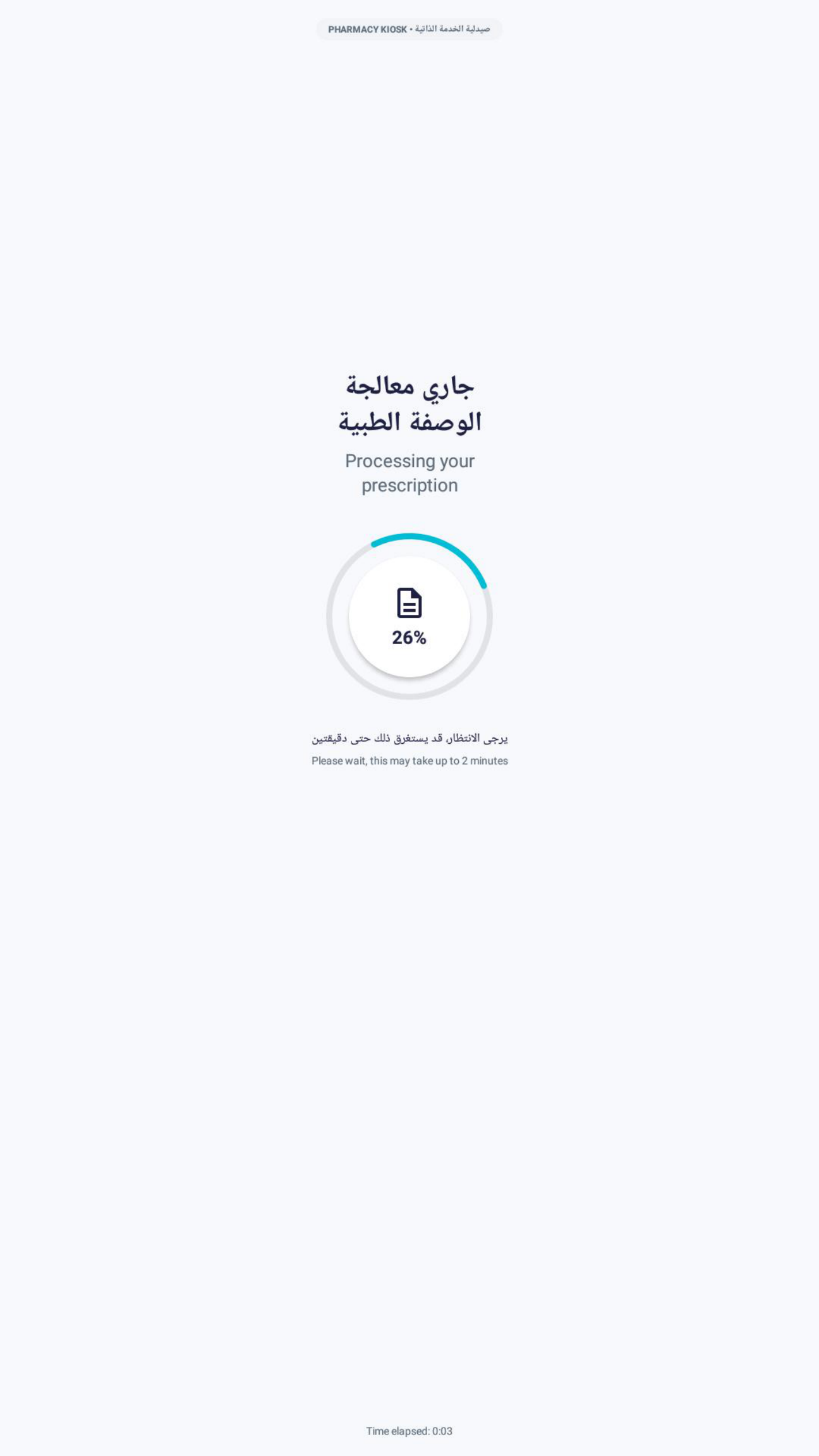
Processing Prescription (26%)
| # | Screen |
|---|---|
| 1 | Processing Prescription (26%) |
Dispensing Medications
Once authorized, the machine activates the spring motor for each medication slot. The screen shows each drug being dispensed with a progress counter (e.g. “Dispensing… 0 of 1”). A yellow warning banner reads “⚠ DO NOT LEAVE — Please wait until all items are dispensed / لا تغادر.” Drop sensors verify each item fell into the collection tray. If a drop is not detected, the system retries the slot automatically.
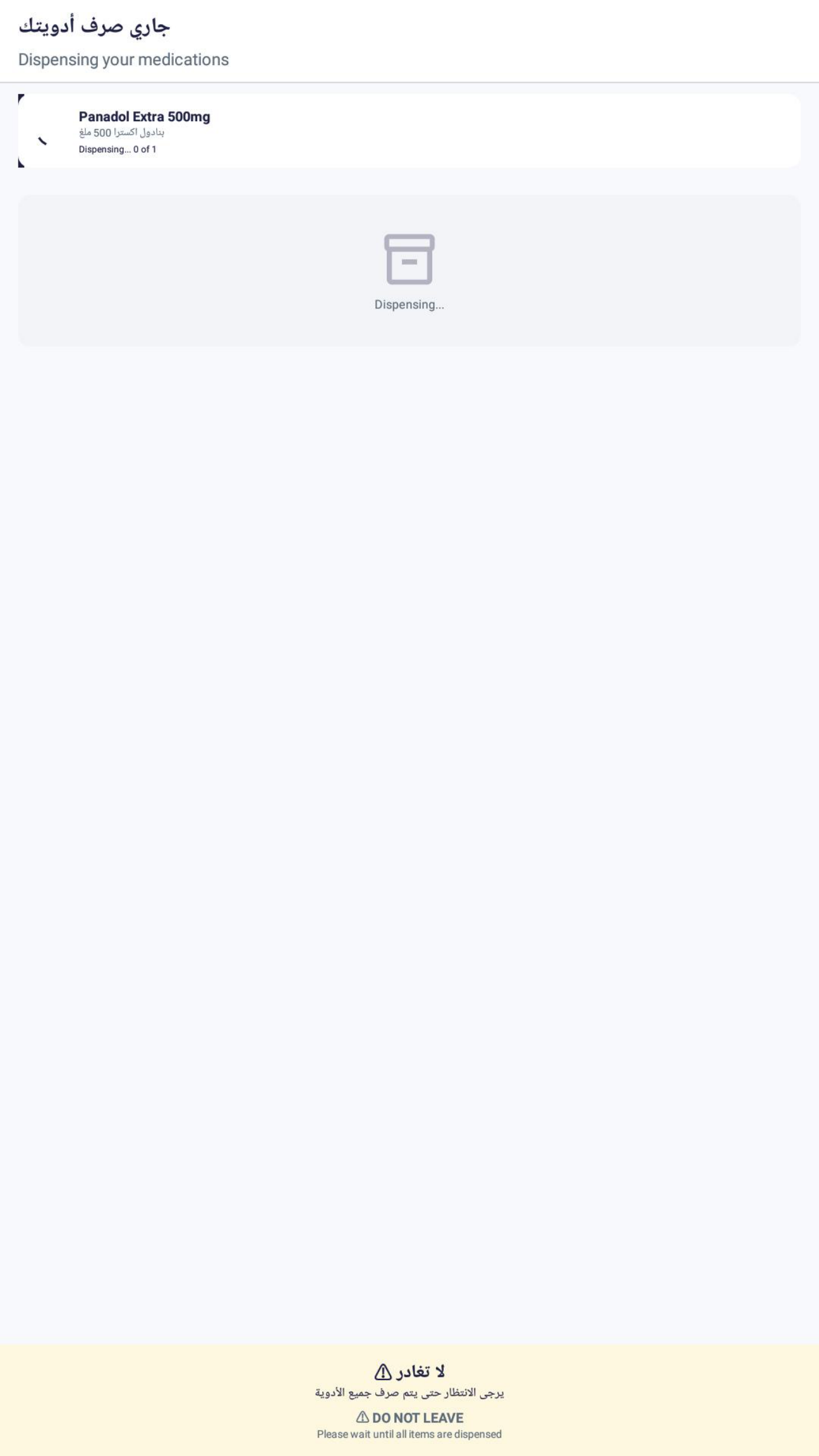
Dispensing — DO NOT LEAVE
| # | Screen |
|---|---|
| 1 | Dispensing — DO NOT LEAVE |
Completion & Collection
A green checkmark confirms “Dispensing Complete! / إتم صرف الأدوية بنجاح.” Instructions tell the patient to collect medications from the pickup tray and printed labels from the printer slot. The dispensed medications list is shown with a checkmark. A support hotline number (800-XXX-XXXX) is displayed. The session auto-closes after 67 seconds. If an error occurs, the patient sees a red “Unable to Process” screen with retry and support options.
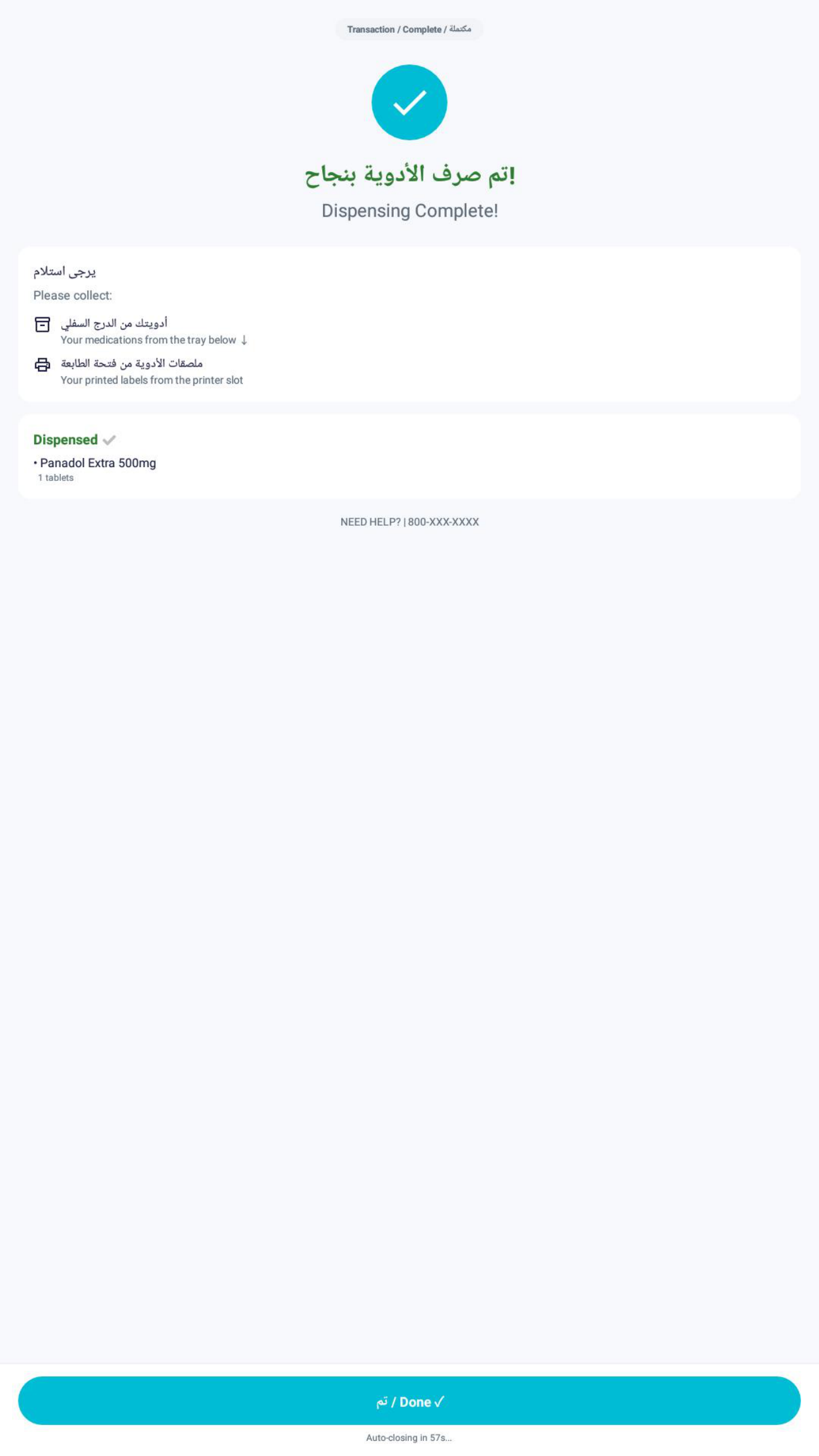
Dispensing Complete — Collect Items
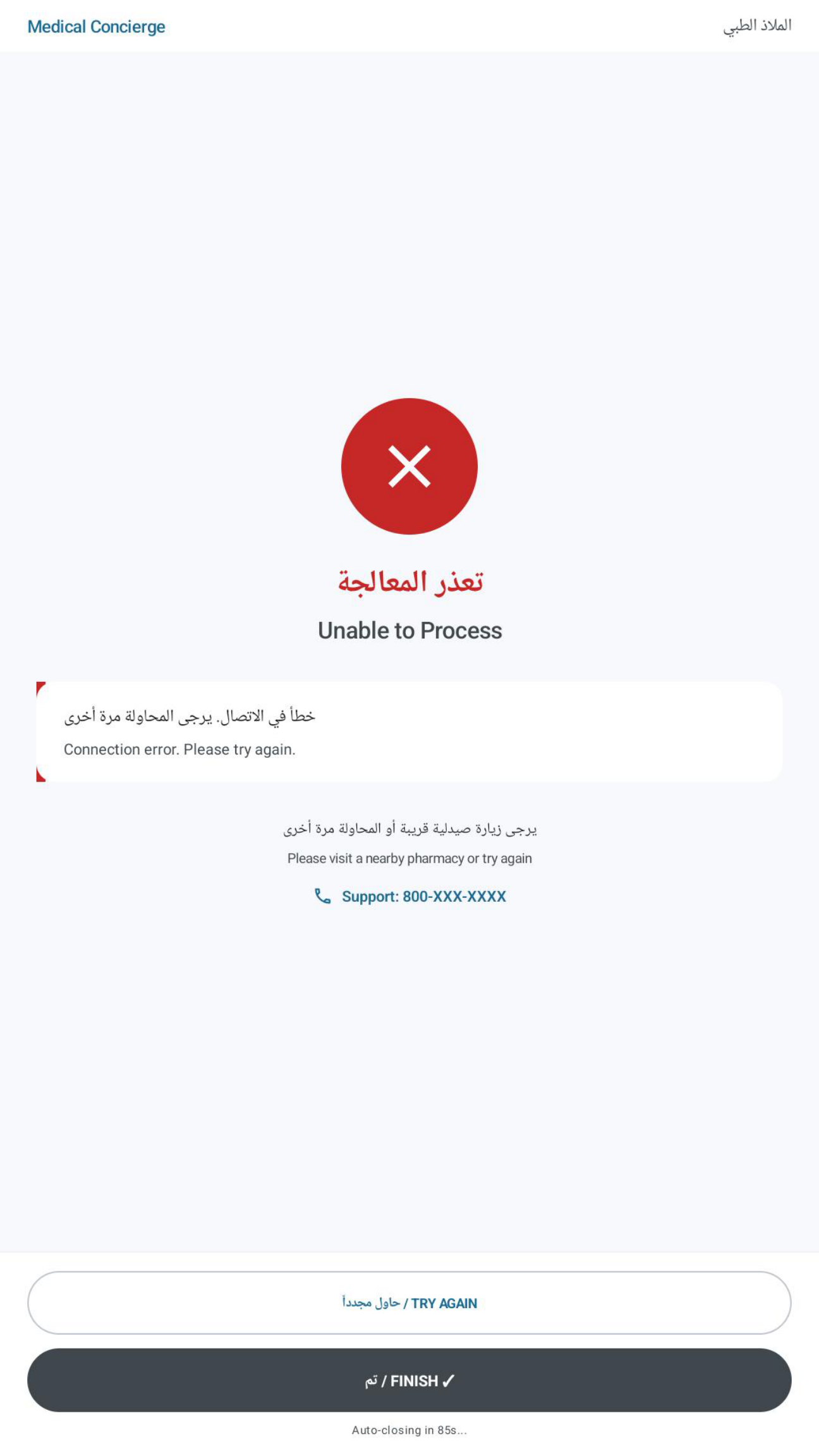
Error — Unable to Process
| # | Screen |
|---|---|
| 1 | Dispensing Complete — Collect Items |
| 2 | Error — Unable to Process |
Admin Panel
Technicians access the admin panel via a PIN-protected lock screen. The panel provides full hardware control across 7 tabs: Dashboard (machine status), Shipment (inventory), Lift (floor control with Move Up / Return to Home), Temperature monitoring, Diagnostics, Slots (spring/belt per slot, merge/split, batch operations, factory reset), API settings, and Network configuration. Door & Partition toggles and LED/Glass Heating ON/OFF controls allow remote hardware management.
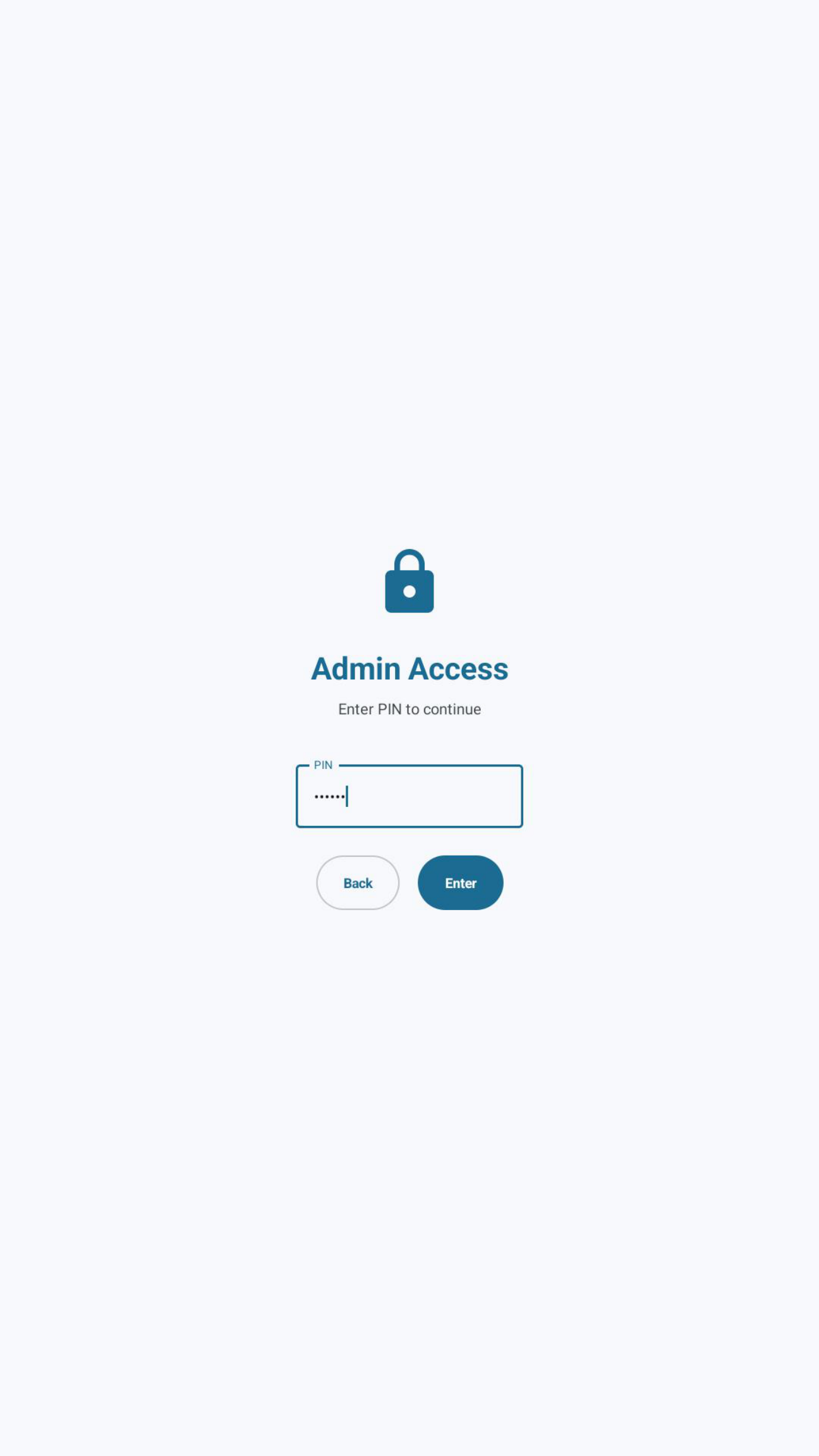
Admin PIN Access
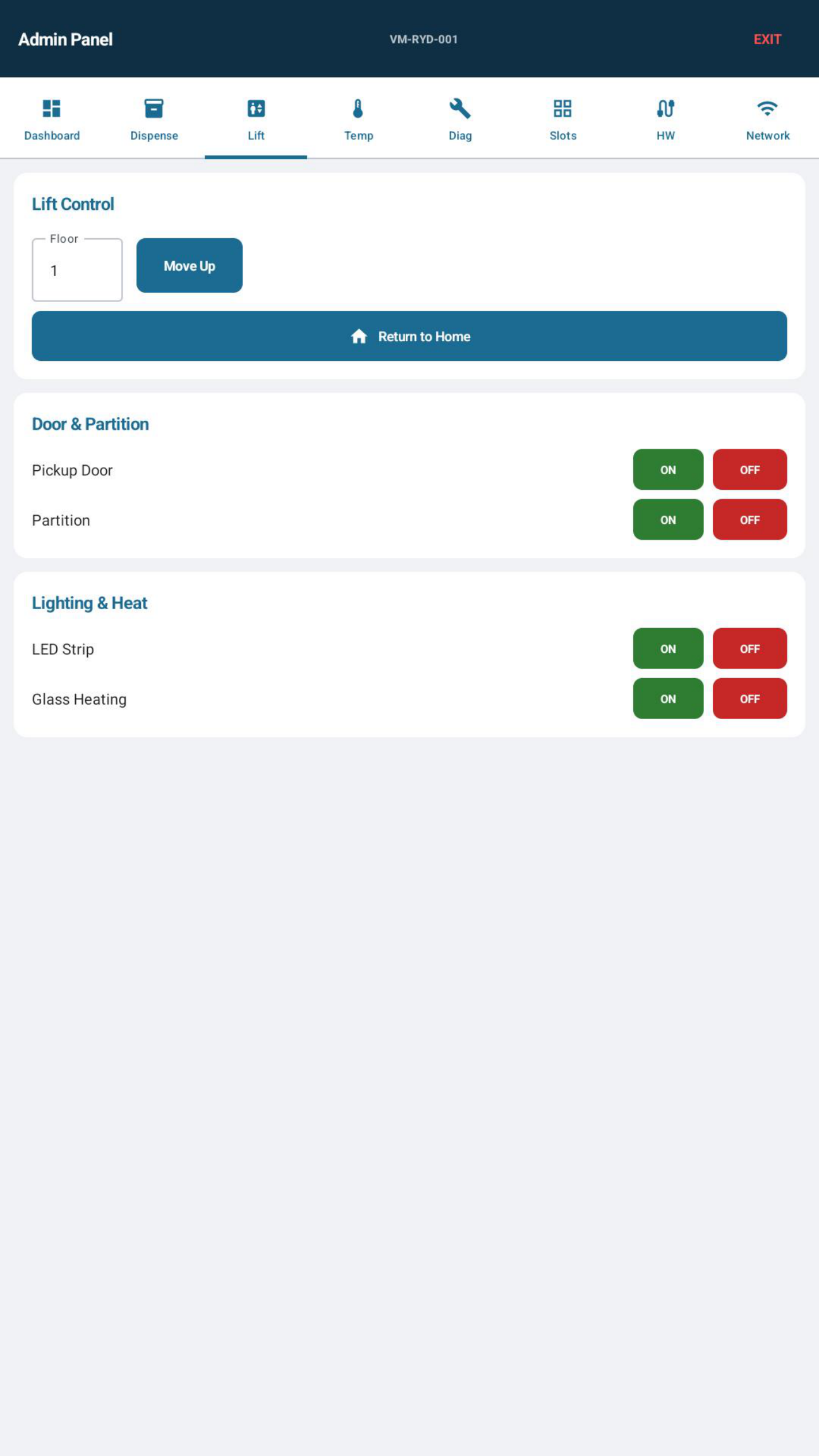
Lift, Door & Hardware Controls
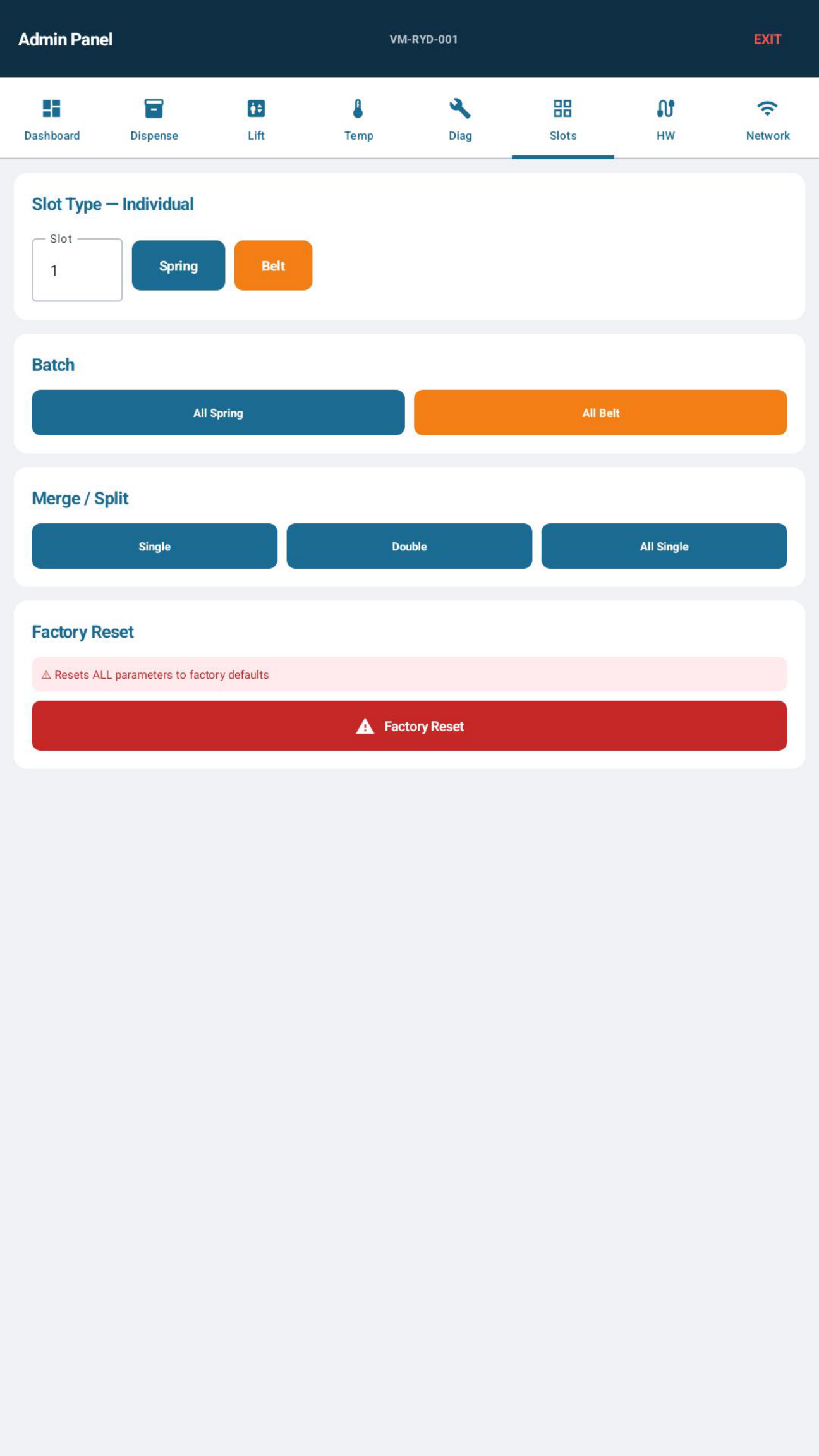
Slot Config & Factory Reset
| # | Screen |
|---|---|
| 1 | Admin PIN Access |
| 2 | Lift, Door & Hardware Controls |
| 3 | Slot Config & Factory Reset |